

Need a link or URL for an image you’ve uploaded to WordPress so you can post the image to other websites or social media? Get Image URL in WordPress Simply.
In this article, we’ll help you find the URL for the images you’ve uploaded to your WordPress site. Let me show you how to find it.

How to Find a WordPress Image URL – Step-wise
For every image you upload to your site, WordPress will automatically create a unique URL using the default media uploader.
WordPress image link usually include the domain name, /wp-content/uploads/ the date the image was uploaded, and the file name of the image.
For example་. An image titled “Skincareroutine.png” uploaded to Skinhacks.com in October 2022 will have a URL as follows.
www.skinhacks.com/wp-content/uploads/2022/10/skincareroutine.png
Let us now learn how and where to find the image URL of the images you upload to your website or blog.
First, You have to log into your WordPress admin area and click on the ‘Media’. This will open the media library which has all your photos and other media files.
You can then use the search function located on Top of your Right-hand side to find the image you want to get the link to. If you have less number of images then you can directly click on the image.
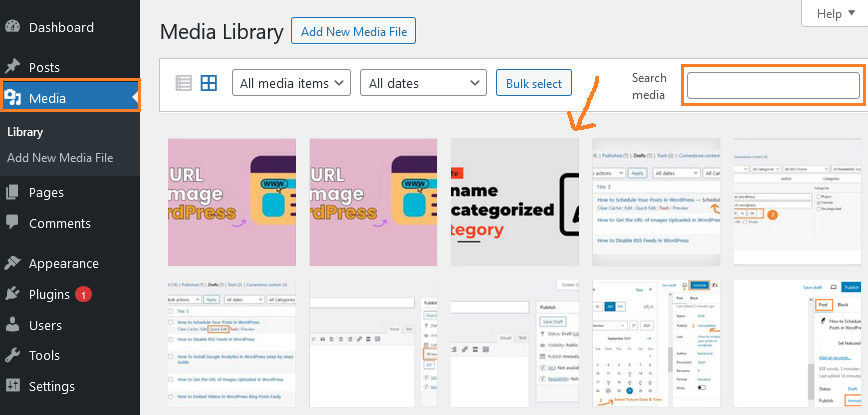
Clicking on the image will open a pop-up window with details about the attachment. The right column shows the image details and the left column shows the image preview.
The Right column Shows Details like File Name, File Type, Upload Date, File Size, Dimensions, Image Caption, Title, Description, etc.
The Image URL is also displayed at the bottom of the page, next to the “File URL” option.
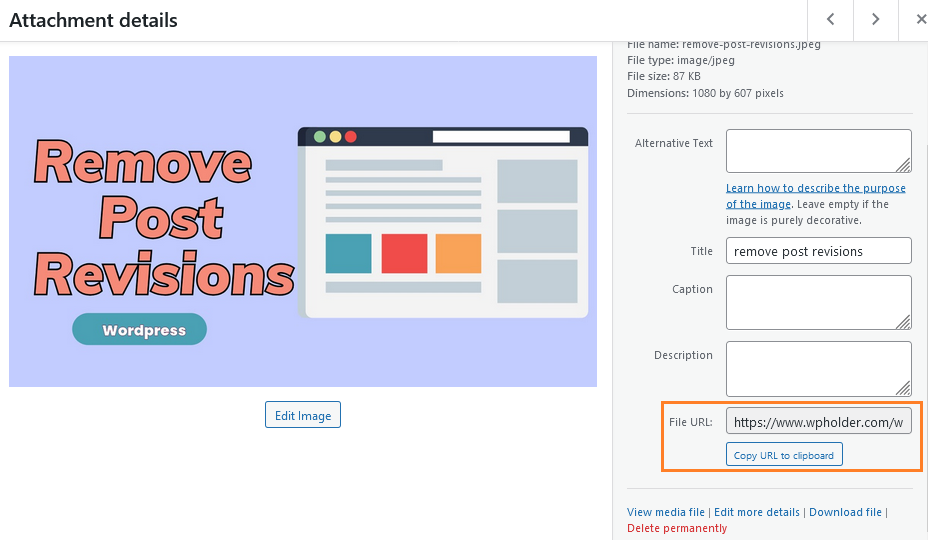
Simply click on ‘Copy URL to Clipboard‘ it will be copied automatically. You can view the original uploaded version of the full-size image by opening the image URL in your browser.
Get the WordPress image URL on the Frontend
The above method makes available the URL of any image uploaded to WordPress, whether it is published or not.
If you want to get the URL of an image that is already published on your website. You can find it on the Frontend. It’s very simple.
Just, Open the page on which the image is published and find the image. Then right-click on the image and select “Open image in new tab”.
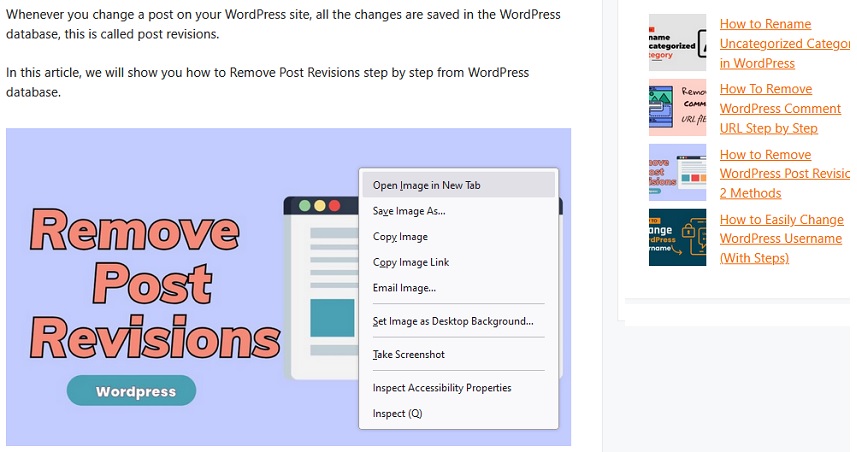
When the image opens in a new tab, take a look at the URL in the address bar – this is the WordPress image URL.
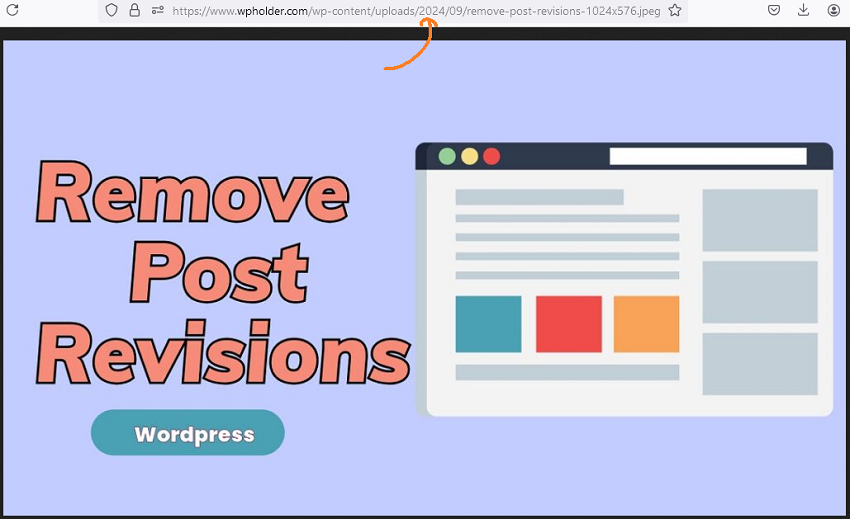
Now, you can just copy the image URL and use it wherever you want to. This is the easiest way to get the URL of images you upload in the WordPress in no time.
Similarly, you can get the URL of GIFs, videos, and documents like PDFs stored in the WordPress media library.
From the taskbar, go to Messages » Library and select GIFs, Animations, and Animations. Click on the video or file whose URL you want to view. Next, the attachment details window will appear.
The attachment URL is next to the Copy link option in the right column.
What If Right Click is Disable ?
Sometimes you may have noticed that right clicking on a post does not work. In such a case, you cannot copy the image URL.
In such a situation, you can copy the image link using the developer inspector tool, so let’s know how to do this.
Open the post from which you want to copy the image URL and find the image, Press ‘Ctrl+Shift+C’ together from your Computer’s Keyboard.
Now hover the mouse over the image and click left.
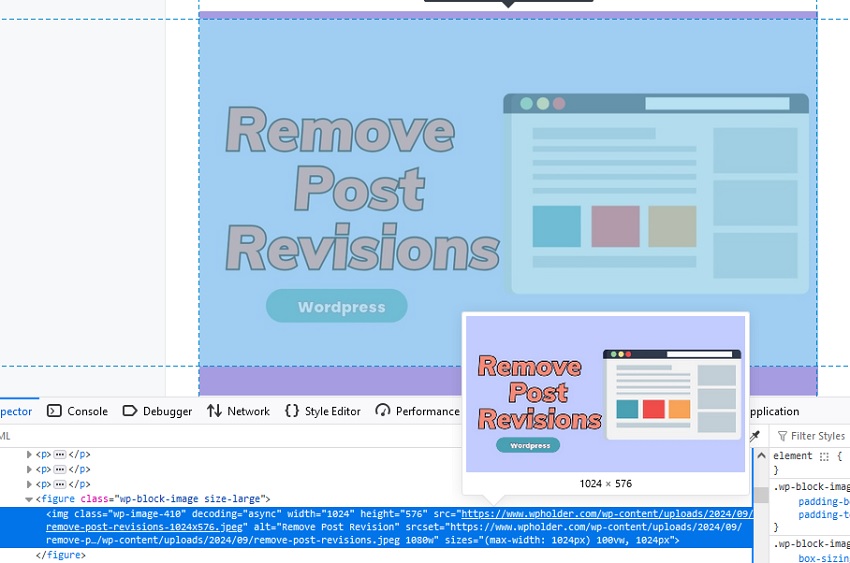
Simply double click over url showing next to src= after that it will turn to editable content now you can copy the image url.
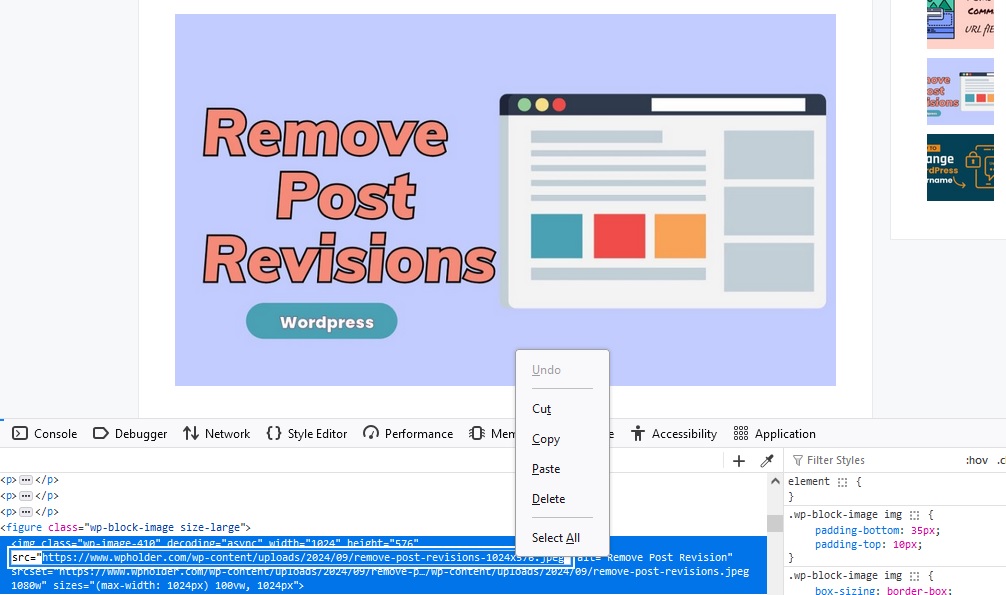
After copy you can paste this url to another tab of your browser, Now save it or take screenshot.
Remember: Not to copy src= “
Thank You
Also Read : How to Remove WordPress Post Revision
