
When you first install WordPress, it gives your site a default title like “My WordPress Site” and a tagline like “Just another WordPress site.”
That default text appears in your browser tabs, Google search results, and sometimes even at the very top of your website. This not only looks unprofessional, but it also impacts your SEO.
However, I have some good news for you. You can change this default title and tagline very easily using WordPress in less than two minutes. It makes a really big difference in how your site appears to both visitors and search engines.
In this guide, I will cover how to change WordPress site title and tagline step-by-step using two different methods. I will also explain what site titles and taglines actually are, why they are important for SEO, and what exactly makes a good tagline or title.
So, Let’s get started.
What Is a WordPress Site Title and Tagline?
Before you change anything, let’s make sure we know what these two things are. These are simple concepts, and once you get them, the rest of this guide will make total sense.
Site Title
The site title is the name of your website. It is your site’s main identity, the name people call it by. For instance, if you run a cooking and food recipe blog called “Tasty Treats,” then “Tasty Treats” is your site title.
Your site title shows up in a few very important places:
- In the browser tab
- In Google search results
- In your website header
- In your RSS feed for subscribers
Tagline
Think of your tagline as a slogan, a brief sentence or phrase describing your website. For example, “Tasty Treats” might use a tagline like “Easy and Tasty recipes for you.” This usually shows up in your header, near the site name.
Note that not all themes display it. Even if it’s not visible on the page, WordPress still use it in the background, especially for your homepage’s browser tab title.
An easy way to remember the difference: the 'Site Title' is your website's name. The 'Tagline' is a one-sentence description of your website. Together, they immediately tell new visitors what your site is called and what it is about.
Why Your Site Title and Tagline Matter for SEO
You might be thinking: it’s just a name and a short sentence. The truth is, it’s much more than that. Default or poor site titles and taglines can negatively affect your website’s SEO and damage your search rankings.
Therefore, choosing a good site title and tagline is a basic yet essential task, and here is why:
Your Site Title Appears in Browser Tabs and Search Results
First of all, whenever someone opens your website, your site title appears in the browser tab. More importantly, it also appears as part of the title in Google search results.
For instance, when you search for something on Google and see a list of blue links, the text displayed is often a combination of the page title and the site title. For instance, if you search “Wpholder” on Google, you will see something like this:
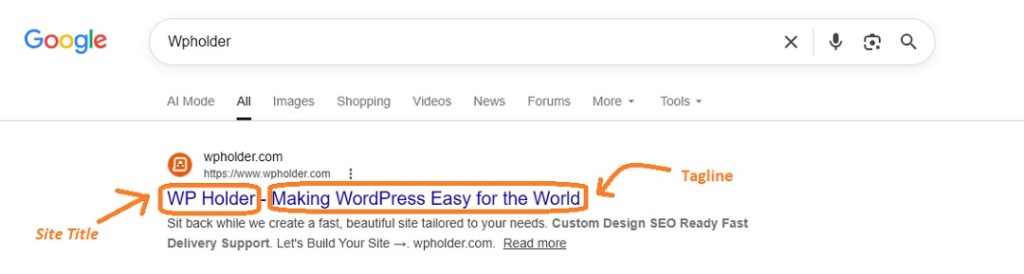
Therefore, if your site title and tagline is clear and relevant, it helps Google understand what your website is about. Consequently, it becomes easier to categorize and rank your site correctly.
Your Tagline Gives Google Extra Context
Additionally, many themes and SEO plugins incorporate your tagline into the homepage’s meta data. This gives search engines a quick summary of your website’s purpose.
So, even though it is short, it is quite important for SEO, particularly for your homepage.
It Builds Trust With Visitors
When someone finds your website through Google and sees a professional, clean site title and tagline, they immediately feel they’ve come to the right place.
On the contrary, seeing “Just another WordPress site” as the tagline makes the website look unfinished and unprofessional right away. This reduces the chances of visitors staying on the site.
It Affects Your Click-Through Rate (CTR)
As you know, your site title is displayed along with your page title in search results. A clean, branded site title can boost the number of people clicking on your link rather than a competitor’s.
Over time, a higher CTR sends a positive signal to Google, which improve your rankings drastically.
One of the biggest mistakes beginners make is leaving the default tagline “Just another WordPress site” as it is. This tells Google almost nothing about your website and makes it look unprofessional to anyone visiting.
What makes a Good Site Title and Tagline?
Before changing your title and tagline, it helps to know what a good one looks like. Here are a few simple rules that really matter.
For your Site Title
- Keep it short: Two to four words work best. Long names are hard to remember and difficult to display in browser tabs.
- Make it memorable: Choose a name that is easy for people to pronounce and remember after hearing it just once, for instance, “Tasty Treats.”
- Include your brand name: If your website has a brand or business name, use that as your site title.
For your Tagline
- Keep it under 10 words: The tagline should be easy to read at a glance.
- State what you do and who you help: For example: “Healthy meal plans for working parents.”
- Include a keyword naturally: If your main topic is “budget travel,” include it naturally, but don’t force it.
- Don’t make it too clever: A tagline that tries too hard to be funny or clever often confuses visitors. Clear is always better than clever.
| Example Category | Good Site Title | Good Tagline |
| WordPress Blog | WP Holder | Making WordPress Easy for the World |
| Tech Blog | Tech Giant | Technology and advancements explained |
| Food Blog | Tasty Treats | Quick Food Recipes for working parents |
| Travel | My Backpack | Honest travel guides for budget explorers |
Changing Your Title and Tagline in WordPress Settings
You can change your WordPress site’s default title and the “Just another WordPress site” tagline in your WordPress dashboard settings. This works on all WordPress themes, old or new.
Just follow below steps and you will be done in 2 minutes.
Step 1: Log in to your WordPress dashboard
First of all, Login to your WordPress dashboard using your username and password.
Step 2: Go to Settings → General
After you log in, locate the Settings icon from the menu on the left side of the dashboard.
Click on Settings » General, and you will see the Site Title and Tagline field over there.
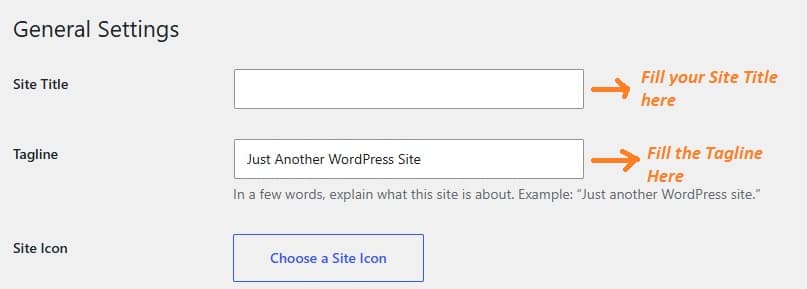
Step 3: Clear the Fields and Type the Site Title and Tagline of your choice
You will most probably see your existing Site Title and Tagline or a default one with “Just Another WordPress Site” text in fields. You can start by clearing the fields and fill in with a suitable Site Title and Tagline.
Step 4: Scroll Down and Save Changes
Once you have made the necessary changes, just scroll down the page and Click on “Save Changes” and you’re done.
Changing Your Title and Tagline in the WordPress Theme Customizer
Apart from the settings, you can also change your Site’s Title and Tagline in the WordPress Theme Customizer. This method is excellent because it allows you to see a live preview of your changes on the right side of the screen before saving anything.
As a result, you can see how the new title and tagline will look on your website before making them live.
Step 1: Log in to your WordPress dashboard
First of all, Login to your WordPress dashboard using your username and password.
Step 2: Go to Appearance » Customize
Open the WordPress theme customizer by going to Appearance » Customize in your WordPress dashboard.
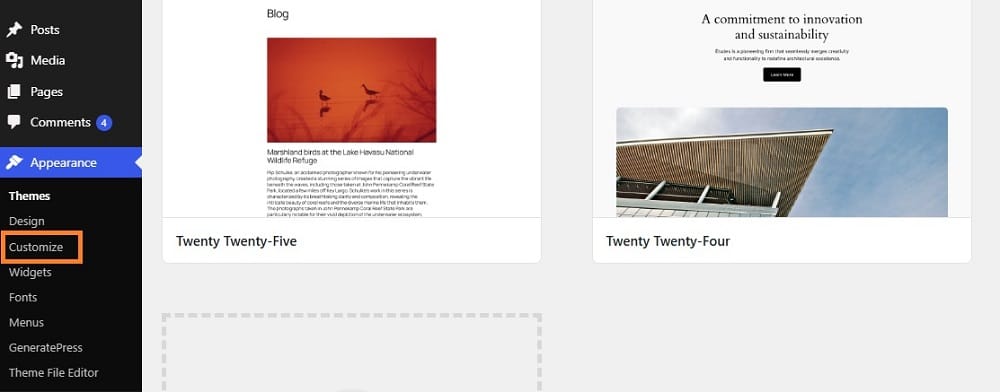
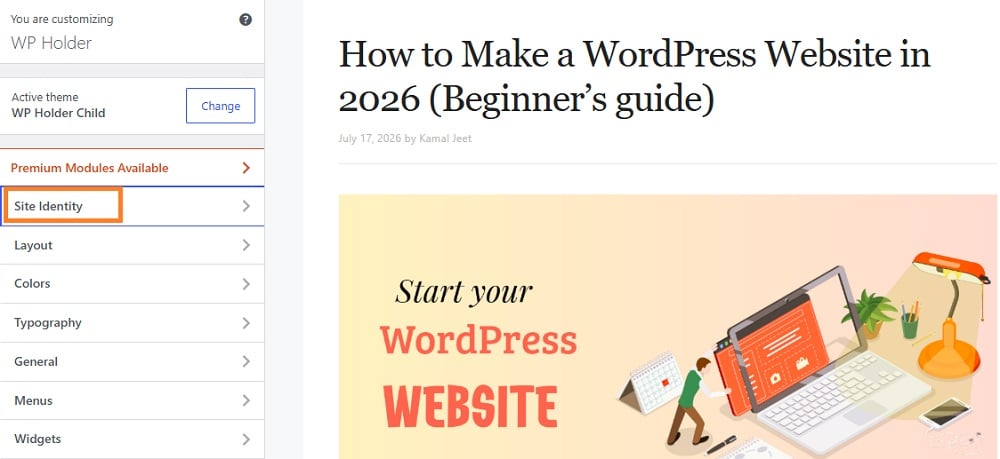
Step 3: Click on “Site Identity”
The WordPress Customizer will open. You will see a lot of sections on the left. Click on “Site Identity,” this section is where you set your site’s title and tagline.
Step 4: Update the Site Title and Tagline
Under ‘Site Identity’ section, You will see the boxes for ‘Site Title’ and ‘Tagline’. Just delete the old text and type in your new title and tagline.
See the right side of the screen as you type, you will see your website update live, so you can see how it looks live.
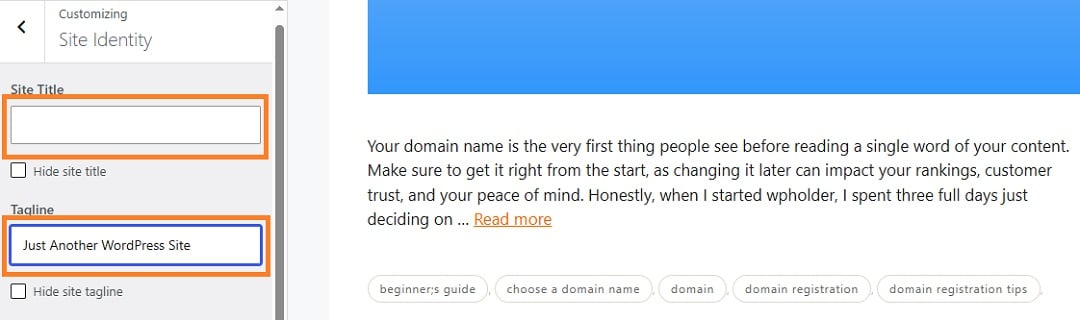
You’ll also see a checkbox labeled “Hide Site Tagline.” If your theme shows a tagline on the website but you want to hide it, just uncheck this box. Your tagline will still be saved in the background for SEO purposes, but it won’t be visible on your site.
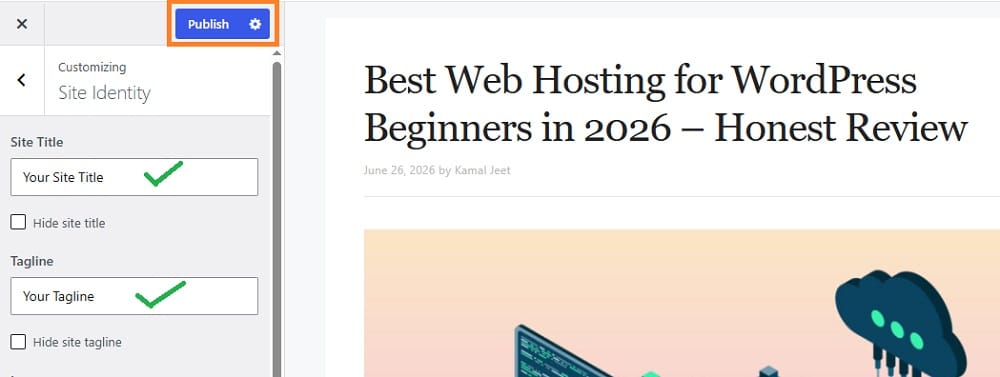
Step 5: Click “Publish” to save your changes
When you are happy with how everything looks, click the blue “Publish” button at the top of the Screen. Your new site title and tagline are now live on your website.
Site Title or Tagline Not Showing? This is why
Generally, changing your tagline is easy. But what if you have changed your tagline and the “Just another WordPress site” text is still visible? Don’t worry, there are simple reasons for this with easy fix that i will explain below.
You can’t see your Tagline
Firstly, not all WordPress themes show the tagline on the page. Many themes use the site title in the header but hide the tagline by default. In that case, your tagline is still there and works for SEO. It is just not visible to you.
If you want to fix this, Just look for a “Display Tagline” checkbox in your theme’s customizer options and enable it.
You see a Logo Instead of the Title
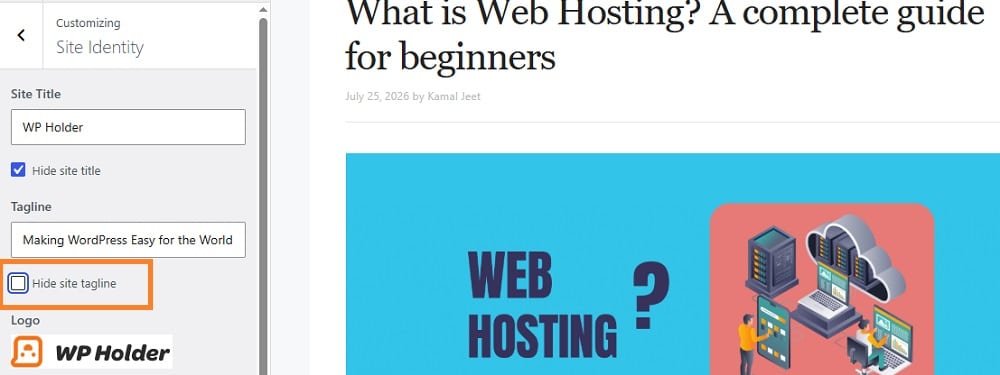
Many themes only use a logo image instead of the site title text in the header. In this scenario, your text title remains in the settings and is not visible because the logo covers it.
If you want to display the text title with or instead of the logo, go to Appearance » Customize » Site Identity and look for a setting that allows you to choose between the logo and the text title, or to display both and enable it.
