

Do you know that WordPress has a cool option that lets you undo changes and go back to an earlier version of your post ? looking for Remove WordPress Post Revision ?
Whenever you change a post on your WordPress site, all the changes are saved in the WordPress database, this is called post revisions.
In this article, we will show you how to Remove Post Revisions step by step from WordPress database.

What is Post Revisions in WordPress ?
Post Revision is a small bundle of changes you made, We all make mistakes while writing. Sometimes, you want to bring back something that you deleted. Revisions helps you do this by letting you go back and fix the changes.
The Revision feature in WordPress helps you get back your work if something bad happens before you can save it.
For example, if your computer freezes or your browser crashes while you’re writing, you can use Revisions to restore your latest draft.
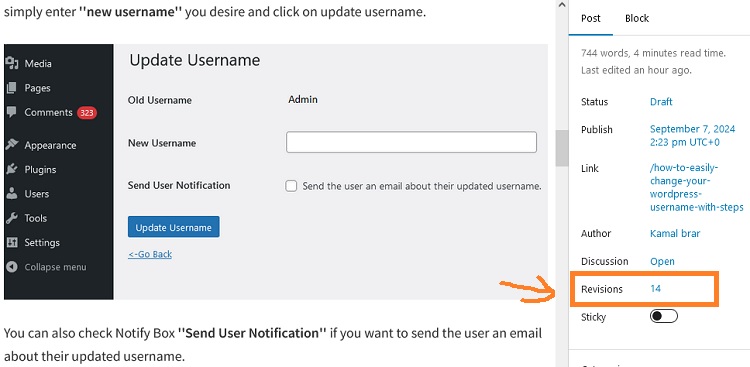
WordPress also saves post revisions every time you click the save, update, or publish button. Unlike auto saves, these revisions are stored permanently in the WordPress database, so you can go back to them anytime.
1
Remove Post Revision WordPress Plugin
If you feel that post revisions are no longer needed then you can delete them from your WordPress database.
Before deleting post revisions, back up the WordPress database so that if something goes wrong you can restore it.
Now, you need to Install WordPress Plugin and activate “WP-Optimize” Plugin from WordPress plugins directory.
After activation Plugin go to WP-Optimize » Database page now check the box just next to Clean all post revisions As shown in the below image.
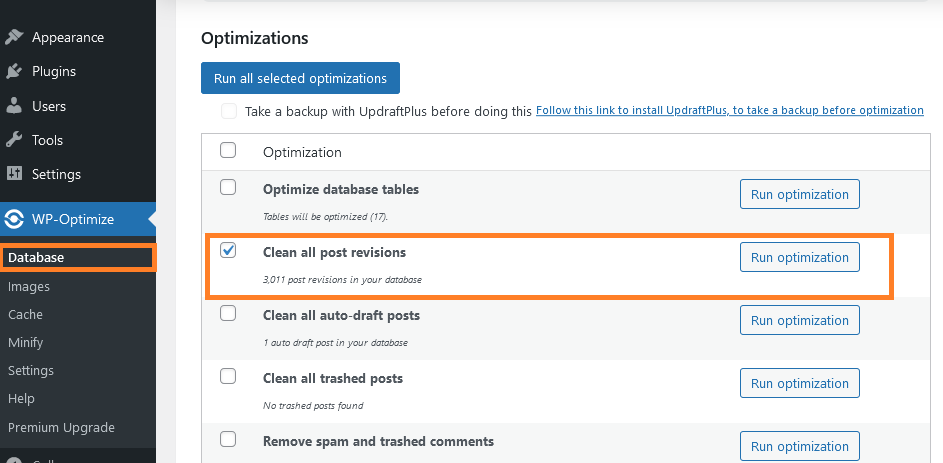
Now click on the ‘Run optimization’ button to delete all post revisions from WordPress database. That’s it, you can now uninstall the wp-optimize plugin.
Deleting revisions will not stop WordPress from saving revisions for your future posts, so in the future you can install the WP-optimize plugin again to remove post revisions.
2
Delete WordPress Post Revision from database using phpMyAdmin
If you don’t want to delete WordPress Post Revision using Plugin then you can also do it manually. So let’s see how to remove WordPress post revision from database using phpMyadmin.
So first of all I would say that take a backup of the WordPress database so that if any mistake happens then you can restore it easily.
Launch your WordPress Database to do so, Go to ‘Database » phpMyAdmin’ from your hosting panel.
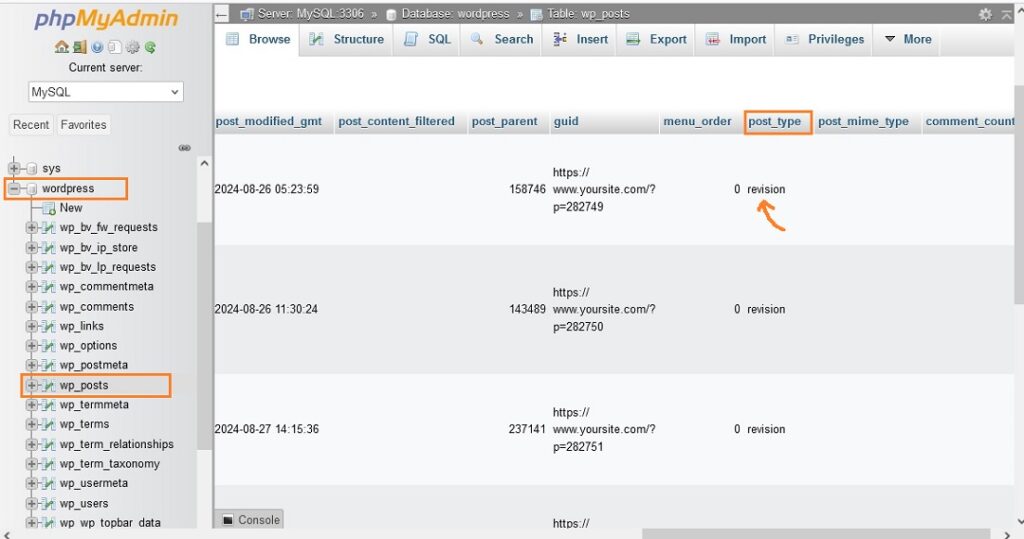
To view post revisions in database click on your database name and then click on wp_posts Now go to last page Here you will see post revisions under post_type.
To delete post revision we need to run SQL Query now click on “SQL”
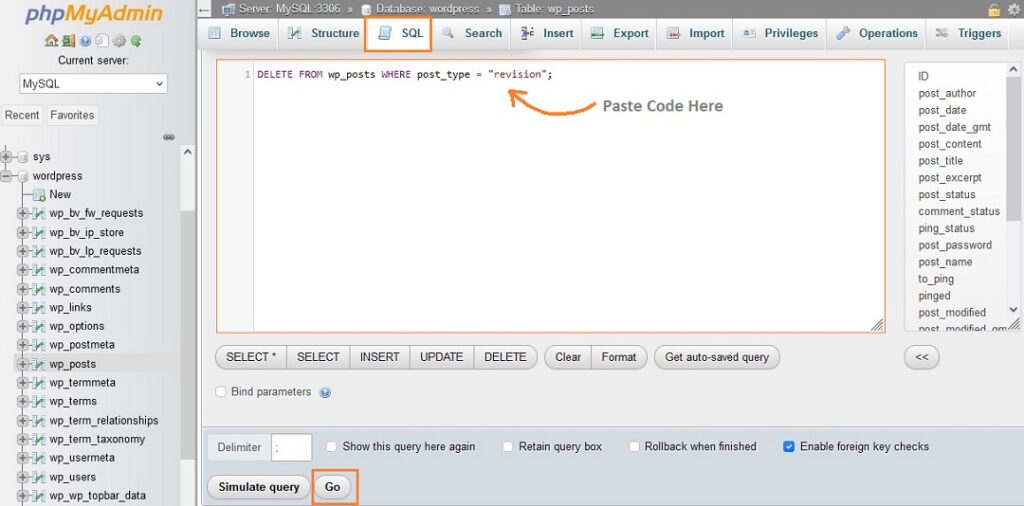
After clicking on SQL you will see a text box in which you have to paste the below SQL query
DELETE FROM wp_posts WHERE post_type = "revision";
Click on ‘Go’ button
Remember if your wp table prefix is changed then please replace with your own table prefix, suppose your table prefix is evr45prs_wp_posts then the code will be
DELETE FROM evr45prs_wp_posts WHERE post_type = "revision";
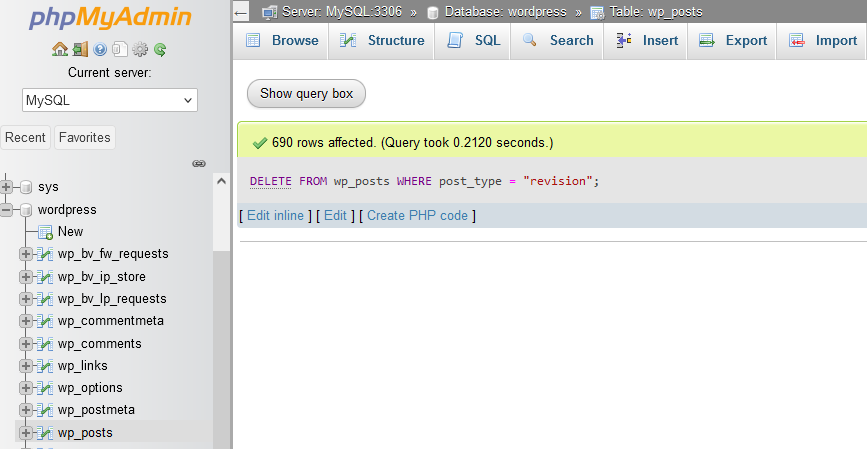
WordPress post revisions are deleted as shown in the above image. From my database, 690 posts were deleted.
I hope this article was useful in removing WordPress post revisions, still if you have any query then do ask in the comment box.
