
WordPress.org or WordPress.com? Which version should I use? This is a question that confuses almost everyone new to this field. Back when I was starting, it took me a while to figure out the difference between WordPress.org and WordPress.com too.
Actually, there are two distinct versions of WordPress, and picking the wrong one could waste your time and money, leading to a lot of frustration.
In this guide, I will explain in detail what WordPress.org and WordPress.com are, how they differ, and which one you should choose for your website.
Why This Confusion?
Let’s start with the most important point: when you search for “WordPress” on Google, you will find two websites – WordPress.org and WordPress.com. Both have “WordPress” in their names and look similar, but they are actually completely different products.
Given this situation, a beginner new to WordPress would naturally be confused between the two; speaking for myself, I was also confused when I first started.
So, you probably understand now that WordPress.org and WordPress.com are two different products, even if they are from the same company.
Now that we have the big picture, let’s go deeper into each one.
What is WordPress.org? (The Self-Hosted Version)
WordPress.org is the place where you can download the free, open-source WordPress software. After downloading it, you can install it on your web hosting account or you can Install WordPress on Localhost, and your website runs entirely under your control.
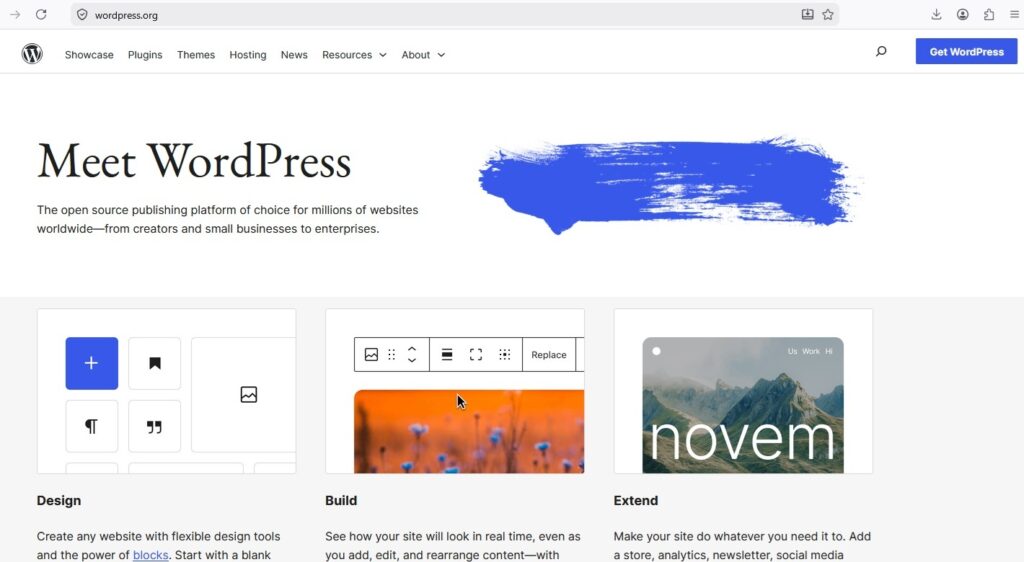
Now, understand an important point. The WordPress software in itself is completely free. Basically, you pay for the domain and web hosting, which means the server space where your website files and databases are stored.
WordPress.org is the version that powers over 43% of websites on the internet, ranging from small personal blogs to global brands like TechCrunch, BBC America, and Sony Music.
As you read this post, understand that it is powered by WordPress software; simply put, WPHolder is also built using WordPress.org-that is, the open-source WordPress software.
Using WordPress.org gives you:
- Full ownership of your website and all your data
- Access to over 59,000 free plugins from the official directory
- The freedom to install themes from any source
- Complete control over your design, code, and hosting environment
- The ability to run ads, sell products, and earn money on your own terms, without sharing revenue with anyone else
What is WordPress.com? (The Hosted Platform)
WordPress.com is a completely different product from WordPress.org. It is a website hosting service built using the WordPress software but it is operated by a company called Automattic.
You don’t have to download anything for this. Just sign up, pick a plan, and Automattic will host your website on their servers.
You can create a basic website using the free plan on WordPress.com, but there are significant limitations. Your website address will look like this yoursite.wordpress.com; WordPress.com displays ads on your site that you have no control over, and you cannot install custom plugins or themes.
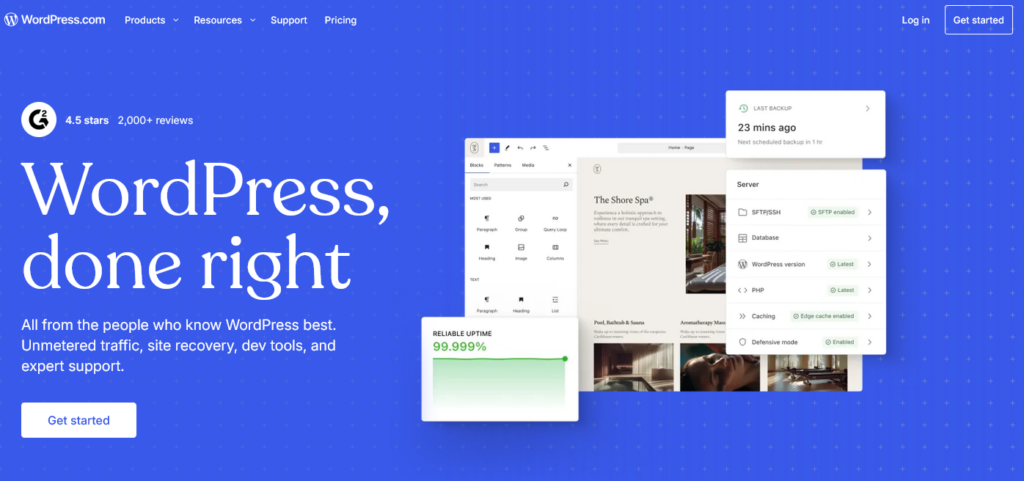
You would need to purchase expensive plans to access additional features. However, even then, certain features such as installing any plugin of your choice are available only in their business plan, which comes at a very high price.
WordPress.org vs WordPress.com
Now that you know what each version is, let’s compare them. This comparison table will make everything crystal clear. Pay close attention to it, as it is the most important part of this entire guide.
| Feature | wordpress.org | wordpress.com |
|---|---|---|
| Cost of software | ✓ Free to download | ✓ Free plan available |
| Hosting | You choose and pay separately (~$3–10/mo) | Included in WordPress.com plans |
| Your own domain | ✓ Yes, use any domain | ~ Only on paid plans |
| Custom plugins | ✓ Yes — all 59,000+ plugins | X Only on Business plan ($25/mo) |
| Custom themes | ✓ Yes — any theme | X Only on Business plan |
| Monetization | ✓ Full freedom — no cut taken | ~ Limited on lower plans; WordPress.com may show its own ads on free plan |
| WooCommerce (store) | ✓ Free to install | ~ Only on Commerce plan ($45/mo) |
| Full code access | ✓ Yes — edit any file | X No access to server files |
| Data ownership | ✓ You own everything | ~ Automattic hosts and controls your data |
| Backups | You manage with a plugin (free options available) | Included in paid plans |
| maintenance | You handle updates and security | ✓ Automattic handles it |
| Best for | Serious websites, blogs, businesses, stores | Very simple personal sites with zero setup |
So, looking at this table, you will see that WordPress.org provides nearly all the features needed for a solid, professional website; the only benefit of WordPress.com is its zero-maintenance setup.
Why do we use WordPress.org on WPHolder?
Instead of just talking about theory, I will show you a practical example. At WPHolder, we use WordPress.org for everything, and there are very good reasons for doing so.
Using WordPress.org is not only cost-effective, but it also provides us with complete control to customize our website according to our wishes, without any paid plans.
How to Get Started With WordPress.org – Step by Step
Since I recommend WordPress.org for the vast majority of people, let me quickly walk you through how to get started. It’s simpler than most beginners expect.
Here is Full Guide : How to Make a WordPress Website (Beginner’s guide)
Here is how to do it.
Register a domain name
Your domain is your website’s address for example, yoursitename.com. You can register it through your hosting provider or a separate registrar like Namecheap and Godaddy.
Pick a hosting provider
You need a web host to store your website. For beginners, Bluehost, SiteGround, or Hostinger are reliable and affordable choices
Connect your domain to Hosting
Now that you have your hosting and domain ready, it is time to connect them.
Install WordPress
Every major hosting provider today includes a one-click WordPress installer (usually in cPanel or a custom dashboard). Click install, set your username and password, and WordPress is live in under 60 seconds.
Log in to your dashboard
Once it is installed, you can log in. Go to yoursite.com/wp-admin, enter username and password, and you will be logged in. Now, you will then see the dashboard for the first time.
Install a theme and essential plugins
Choose a free theme from Appearance → Themes → Add New. Then, Install the essentials an SEO plugin like Rank Math, a security plugin like Wordfence, and a backup plugin like UpdraftPlus.
Add the content to site
Go to Posts → Add New Posts → Add New. The block editor (also known as Gutenberg) lets you add text, images, buttons, and columns using blocks, with no coding required.
To truly begin your journey with WordPress and build a quality website, you can read the articles listed below for complete information.
Additional Resources :
