
Are you thinking about starting a new website? That is a great decision. You will need a domain to start with. As a beginner, many people search for how to register a domain name on GoDaddy because it is one of the most popular registrar to buy domains.
In fact, millions of people use GoDaddy every day. Also, the platform is very easy to use, so even if you have not used it before, you can do so without any difficulty.
When I first thought about registering a domain, I was wondering where to buy it. After some research, I decided to go with GoDaddy.
In this guide, I will explain step-by-step how to register a domain name on GoDaddy and for that you do not need to have any technical skills. So, let’s begin.
What Is a Domain Name?
First of all, let’s understand what is a domain name. It is an address for a website on the internet that humans can easily read and understand. This is what you type into your browser to visit a site. For example, google.com, wikipedia.org, and wpholder.com are all domain names.
Imagine the internet as a giant city. Each website is like a store in that city. The domain name is the store’s address. Without an address, no one will be able to find your store.
Why choose to Register a Domain Name on GoDaddy?
Now, let’s have a look at why GoDaddy is the right choice for domain registration. Although there are many domain registrars, such as Namecheap and Google Domains, from which you can purchase domain names. However, GoDaddy remains a top choice for beginners.
Before I explain how to register a domain name on GoDaddy, let us find out why it is a smart pick;
| Reasons | Details |
|---|---|
| ✓ Trusted Brand | GoDaddy has served customers for more than 25 years. |
| ✓ Easy to Use | The website is very simple. Anyone can use it without help. |
| ✓ Affordable Prices | Start as low as $0.99/year for new buyers. |
| ✓ 24/7 Support | You get help any time, day or night. |
| ✓ All in One Platform | You also buy hosting, email, and SSL from one place. |
| ✓ AI Domain Search | GoDaddy uses smart AI tools to suggest the best names. |
How to Get Started?
Now that you are ready, please have a look below for a step-by-step guide to begin registering your domain with GoDaddy.
1. Go to the GoDaddy Website
Open your web browser. Then, type www.godaddy.com in the address bar and press Enter. After that, the GoDaddy homepage will appear on your computer screen.
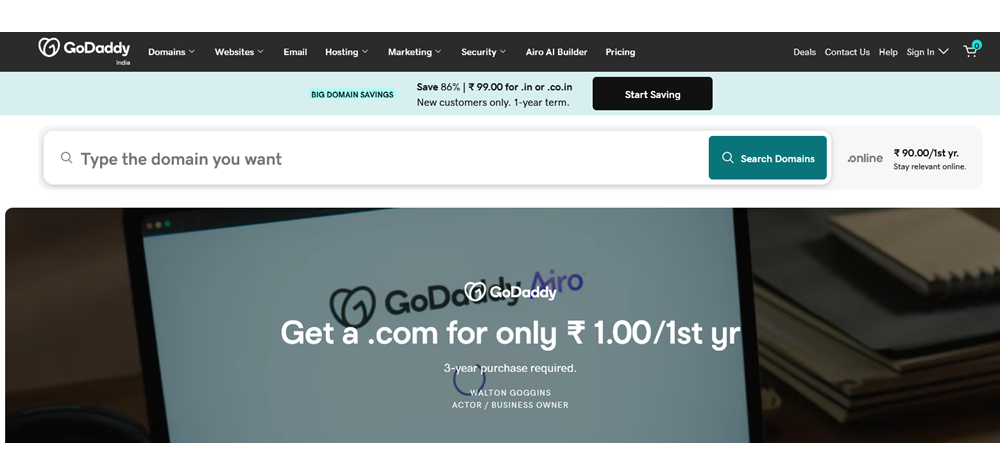
You will see a big search bar right in the middle of the homepage. It says something like “Type the domain you want”. This is where you start your search.
Remember, Always go directly to godaddy.com. Please do not click on random links from emails or ads. So, you stay safe from fake websites and scams.
2. Search For Your Desired Domain Name
First, enter the domain name you want in the search box. For example, I am taking Pinzole.com, type “pinzole” in the box. Then, click the large Search Domains button on the right.

On the next screen, GoDaddy will shows you whether the domain your are searching for is available or taken. if it is available, It is a great news. you can go ahead and register it.
However, if it is already taken, do not worry at all. GoDaddy instantly suggests many other smart options for you or you can search again with any other domain name of your choice.
How to Pick a Good Domain Name
Below are some points you should keep in mind while choosing a domain for you:
- Keep it short and easy to write or spell
- If possible, use a .com; it is the most reliable extension
- Avoid numbers and hyphens (like my-pinzole or Pinzole123)
- Always make it related to your business or topic
- Never ever copy brand names – it can lead to legal troubles in future.
You can also read our complete guide on How to Choose a Domain Name for Your Website
3. Add the Domain Name to Your Cart
Once you have decided on a Domain name, click the “Add to Cart” or “Make It Yours” button next to it. GoDaddy will then automatically add it to your shopping cart.
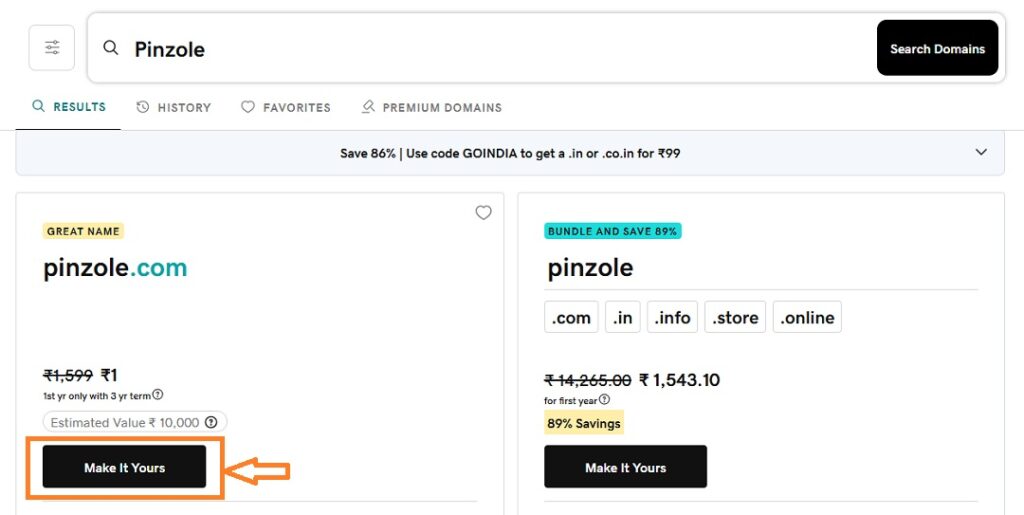
Godaddy can sometimes show you some Add-on services like Professional Email, Hosting etc. while you head to your cart. As a beginner if you just need a domain, you can simply avoid adding it and proceed ahead.
4. Review Your Cart
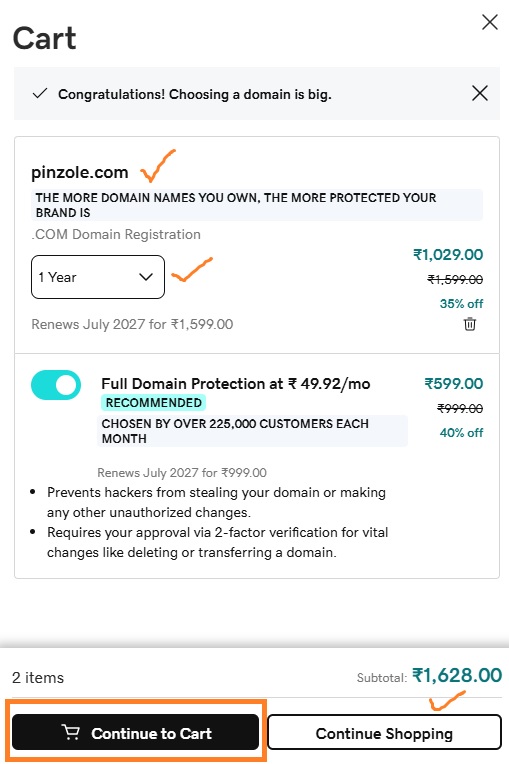
Start by clicking on “View Cart” and there you will see the complete summary of your order. Ensure to check the things mentioned below carefully:
- ✓ Correct Domain Name
- ✓ Registration Period ( From 1 year to 10 years as per your need)
- ✓ Total Price
At this stage, you have to choose how many years you want to register the domain for. The beginners usually choose one year. However, if you register for two or more years, you can get a better discount.
When everything looks right, click on the “Continue to Cart” button to proceed further.
5. Create a GoDaddy Account or Sign In
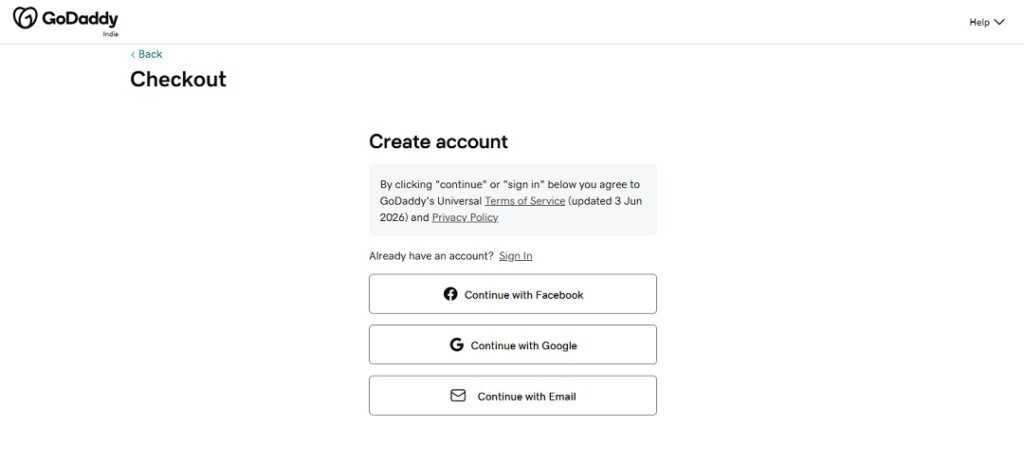
You will need a GoDaddy account to make any purchase. If you already have a GoDaddy account, you can sign in using your login credentials, or you can just create a new account.
Create a GoDaddy Account as a New User
Creating an account on GoDaddy is very easy and free. You can either continue with your facebook or gmail
- Click “Continue with Email”
- Enter your email address
- Choose a username
- Create a strong password
- Finally, Click “Create Account”
That’s it! Your account is ready to use.
Sign in If you Already have a Godaddy Account
Simply Enter your registered email/username and password. Then, click “Sign In.” GoDaddy will then take you directly to the “Checkout” page.
Pro Tip: ✓ Always use a strong password such as a mix of letters, numbers, and symbols. For example, NewDomain@2026! is a strong password.
6. Enter Your Contact Information
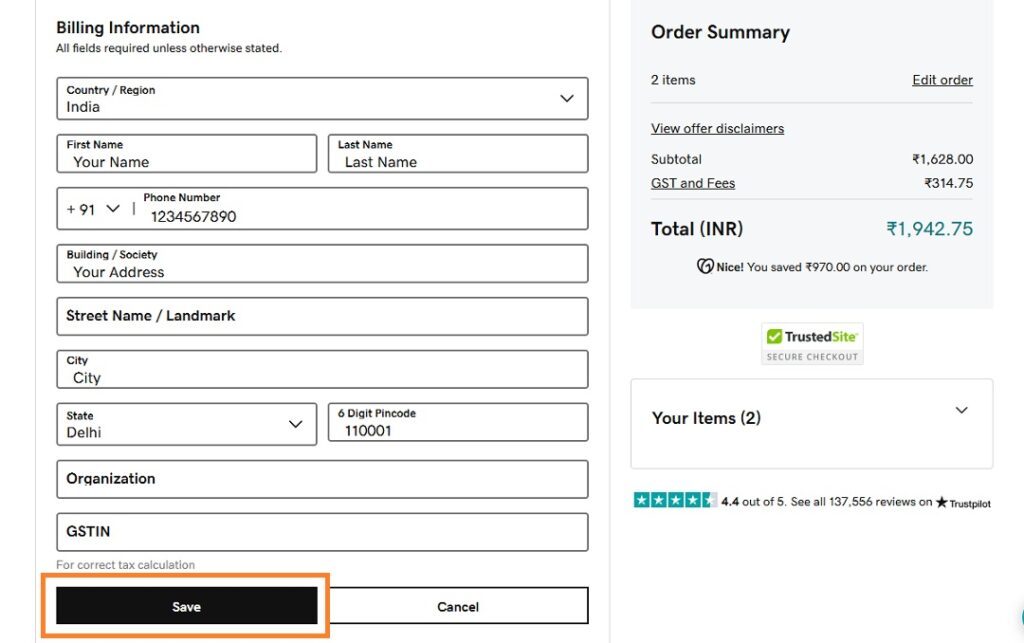
After signing in, GoDaddy will ask for your contact information ( Your name, Address and Contact number etc.). This step is MANDATORY because ICANN (the organization that oversees domains) requires accurate information for all domain registrations.
So, Fill in All the information carefully. After you fill in everything, simply click on “Save”.
Pro Tip: GoDaddy offers a feature called Full Domain Protection which helps in unauthorized access prevention, activity log access and real time alerts for your account. You must opt for this service as it just costs a small extra fee per year.
7. Complete the Payment
Here comes the final step where you pay for your domain name and make it yours. GoDaddy accepts several payment methods for domain registrations which include:
- Credit Cards ( Visa, Mastercard, American Express)
- Debit Cards
- Net Banking
- UPI
Now, you select the payment method which is convenient for you and enter the details. Next, you review the final order summary. If everything is correct, you click the large “Save Payment and Tokenize” button.
Congratulations! Your domain name is now officially registered in your name. After the payment, GoDaddy sends a confirmation email to your registered email address. This email will have Order number, Domain Name, Registration Period and your Invoice/Receipt.
How to Access and Manage Your Domain Name
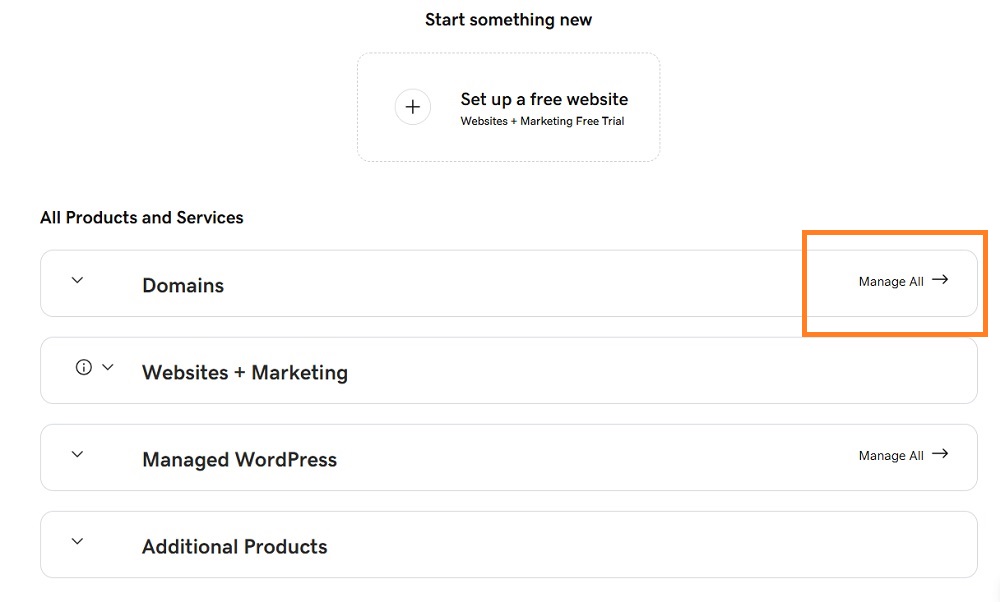
Once you register a domain name on GoDaddy, the next step is learning how to manage it. You can manage your domain name whenever you wish through your GoDaddy account dashboard.
Here is how you can manage your domain with GoDaddy:
- Go to godaddy.com and sign in to your account
- Click on your profile name icon at the top right
- Click on “My Products” from the dropdown menu
- Then, you see your domain name listed there
- Click “DNS” or “Manage” to control your domain settings
Important Tips After You Register Your Domain
- Turn On Auto-Renewal: First and foremost, enable auto-renewal. This ensures that GoDaddy automatically renews your domain every year. As a result, you will never lose your domain name simply because you forgot to renew it.
- Enable Two-Factor Authentication: You can enable 2-step verification on your GoDaddy account. This adds an extra layer of security. Even if someone discovers your password, they will not be able to access your account without your phone.
- Get Domain Privacy: Additionally, you might consider getting domain privacy protection. It keeps your personal contact information hidden from public view; otherwise, spammers could find your phone number and email address in the public WHOIS database.
- Buy Hosting: After all, your domain name is simply an address. Therefore, you will also need web hosting to put a website at that address. GoDaddy offers good hosting plans. Additionally, you can use other providers like Hostinger, Bluehost, or SiteGround.
You can also read our detailed guide on Best Web Hosting for WordPress Beginners in 2026 – Honest Review
