
Are you wondering what is WordPress and why everyone keeps talking about it?
You are not alone. Many beginners hear the word WordPress for the first time when they decide to start a blog or make a website.
However, most of them do not know what it actually does. We have used WordPress for many years to build blogs, business websites, and online stores.
During this time, we have helped thousands of beginners create their first website with it.
Today In this article, we will learn about WordPress; we will discuss what it is, what it is all about, and what you can do with it step by step.
You will explore In This Guide
What is WordPress?
WordPress is a free, open-source content management system (CMS) that allows you to create and manage websites or blogs without writing code from scratch. You simply need to install it on a web server, log in to the dashboard, and start creating pages, blog posts, and menus using a visual interface.
WordPress was initially released on 2003 by Matt Mullenweg and Mike Little. Later, in October 2009 WordPress was announced as open source. Today, it powers over 43% of the websites on the internet including WPholder.
The best part it is completely free to download and use. You only have to pay for hosting server or any other premium themes or plugins you choose to install.
But for a new user, it can sometimes be confusing as where to start, how can it be used commercially, which version is to be used and so on.
So, Further i will guide you in detail about WordPress, How it works, what are its pros and cons and how you can start building your website on WordPress.
How Does WordPress Work?
WordPress runs on a server and uses a database to store all your content from your posts, pages, settings, user accounts to your media files. When a user visits your website, WordPress pulls the right content from the database, combines it with your chosen theme, and sends a finished web page to the visitor’s browser.
Basically, It is designed to make building and managing your website super easy, simple and convenient.
WordPress use the dashboard, database and plugins to help you control your site’s content, design and the features without worrying about the coding or the technical part.
Here’s a quick breakdown of these three main pieces:
- The Dashboard: This is your control panel. You write posts, upload images, install plugins, and change settings all from here.
- The Database: WordPress stores your content in a MySQL database. It handles this automatically and you never need to touch it directly.
- The Theme: This controls how your website looks. Swap the theme and your entire design changes, without touching your content.
The login page typically lives at yourdomain.com/wp-admin. Once you log in, you’ll see the dashboard, a clean admin panel where everything happens.
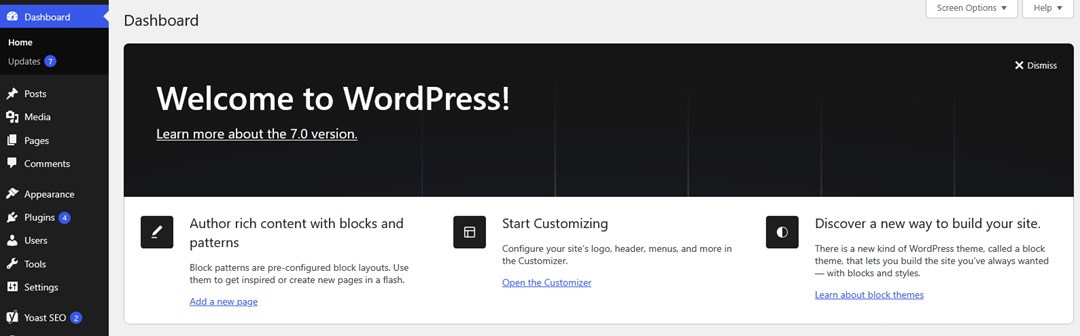
After logging in, you see this type of dashboard.
From here, you can easily manage your WordPress site; you can write posts, create pages, upload images, install plugins, change themes, and manage every part of your site.
Let’s continue.
Difference Between WordPress.com vs WordPress.org
Almost every new user gets confused by this part, so let’s clear it up first. There are two types of WordPress, and they aren’t the same.
WordPress.org is the free, open-source software. Simply, You can download it and install it on your own web hosting of your choice. You own your website fully, and you can add any theme or plugin you like. This is also called self-hosted WordPress.
WordPress.com is a hosting service built on the same software. It is easier to start, but the free plan has limits. For example, you cannot install custom plugins or use your own domain name unless you pay for an upgrade.
These are common points where beginners often get confused. In reality, there are two different versions of “WordPress,” and they work in very different ways.
| Feature | WordPress.org | WordPress.com |
| Cost | Free software, you only pay for hosting | Free and paid plans available from $4/month |
| Control | Full control over everything | Limited on free/smaller plans |
| Plugins | Install any plugin (50,000+ available) | Only on Business plan and above |
| Custom themes | Yes, any theme | Limited to WordPress.com themes on free plan |
| Ads on your site | No ads unless you add them | WordPress.com shows ads on free plan |
| Best for | Serious websites, blogs, businesses | Quick personal sites with no setup |
When most people say “WordPress”, they mean WordPress.org, the self-hosted version you can download and install on your own hosting account. So, This guide will walk you through WordPress.org version.
What Can You Build With WordPress?
WordPress initially started as a blogging platform, but with time, it grew far beyond that. Today you can build almost any type of website with it.
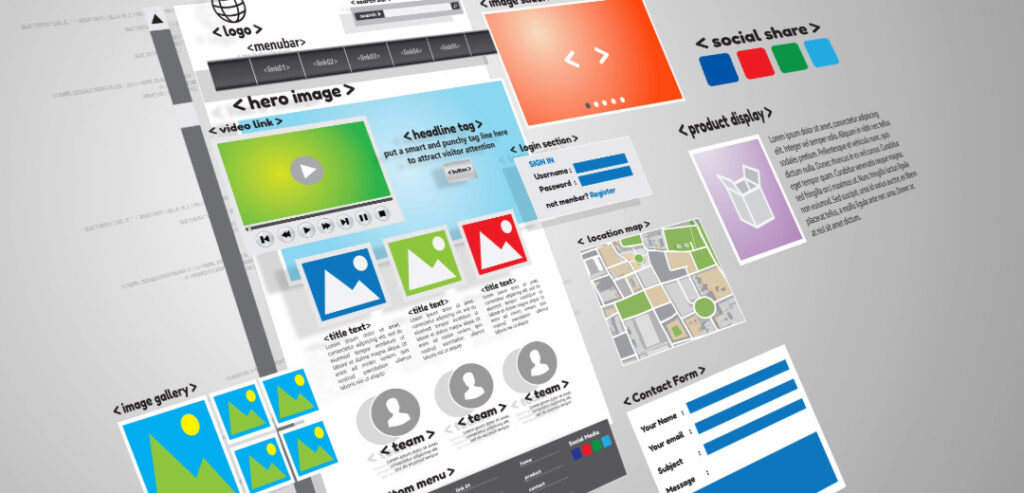
Such as :
- Blog: You can set up a blog in minutes, write posts, and organize them with categories and tags.
- Business Website: Add your services, team, contact form, and testimonials using free plugins and page builders.
- Online Store: Install WooCommerce (a free plugin) and sell physical products, digital downloads, or subscriptions.
- Portfolio: The designers, photographers, and freelancers use WordPress to showcase their work.
- Membership Site: You can charge for your exclusive content and manage member accounts with plugins like MemberPress.
- News or Magazine Site: You can handle high volumes of content with custom categories, authors, and editorial workflows. Learning Management System (LMS): Build online courses and sell them using plugins like LearnDash or LifterLMS.
So, which one should you choose?
In most cases, we recommend WordPress.org. It gives you complete freedom, full ownership, and access to all of WordPress’s features. Plus, it is very cost-effective, as you only need to pay for a domain name and hosting.
Because, Over the past few years, we have built numerous websites and blogs using WordPress. We have created blogs, business sites, portfolios, and online stores for ourselves and our clients. in fact, we use WordPress for WPholder as well.
Who Uses WordPress? (Famous Websites Built on WordPress)
You may be surprised to learn who really uses WordPress. It is not limited to small blogs and local businesses. Some of the world’s largest corporations trust WordPress to power their websites.
Let’s explore a few of them.
The White House (US government)
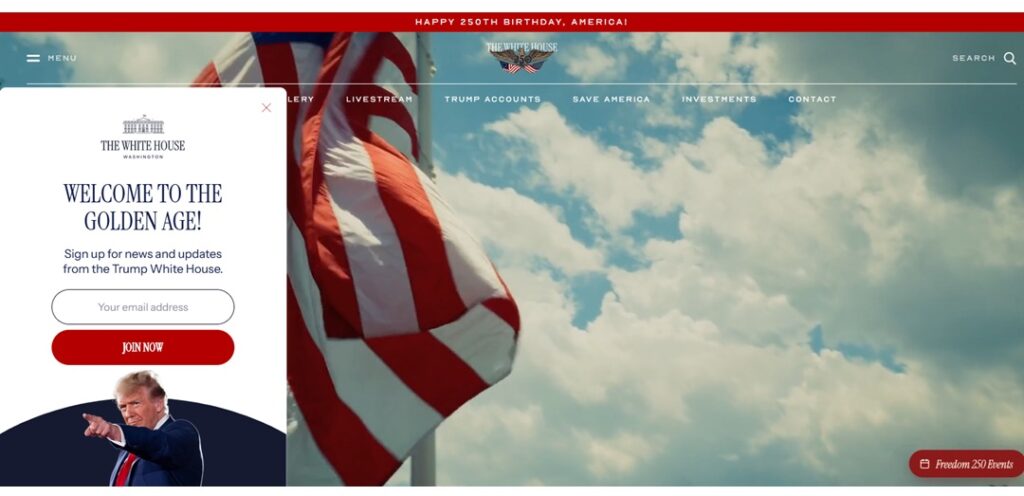
Yes, you read that correctly, the official White House website (WhiteHouse.gov) is powered by WordPress. Now Just imagine, if WordPress is secure and robust enough for the US government.
It is certainly more than enough for your website.
Other Famous Websites That Use WordPress
The White House is not alone. Many other big brands and organizations also use WordPress.
For example :
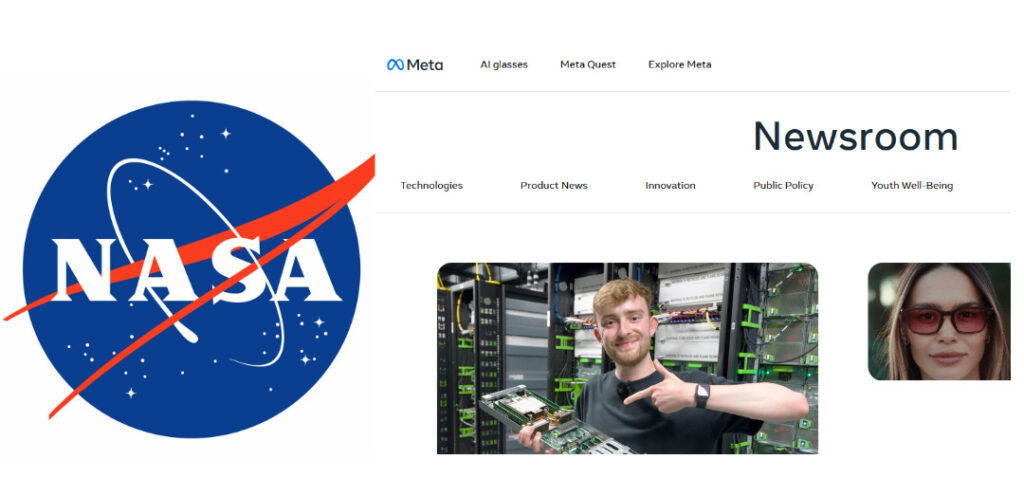
- NASA – The official website of the US space agency runs on WordPress.
- Facebook News Room – Facebook also publishes its content using WordPress.
- Microsoft News – Microsoft uses WordPress for its news and press site.
- Harvard University – Harvard Gazette The official news website of Harvard University.
- Sony Music – The global music company uses WordPress for its main site.
- PMO India – The official website of the Prime Minister of India also uses WordPress.
Themes and Plugins Explained
Themes and plugins are two of the most important components of how WordPress works. Once you understand these two things, understanding WordPress becomes very easy.
Next, we will look at the themes and plugins one by one.
What is a WordPress Theme?
A theme controls how your website looks in terms of colors, fonts, layout, and overall design. You can change the theme in seconds without losing any of your content.
WordPress has a built-in theme directory with thousands of free options, plus you can also buy premium themes from marketplaces like ThemeForest.
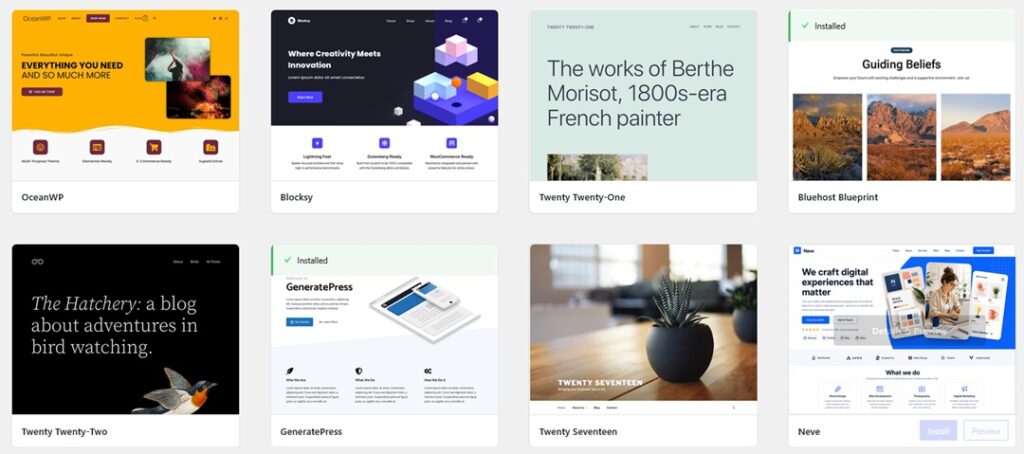
Some of the most popular themes include Astra, OceanWP, Kadence, and Divi. Many themes work with page builders, which allow you to visually drag and drop elements to create your layout.
What is a WordPress Plugin?
Plugins are like apps for your website. They add new features to WordPress without any coding.
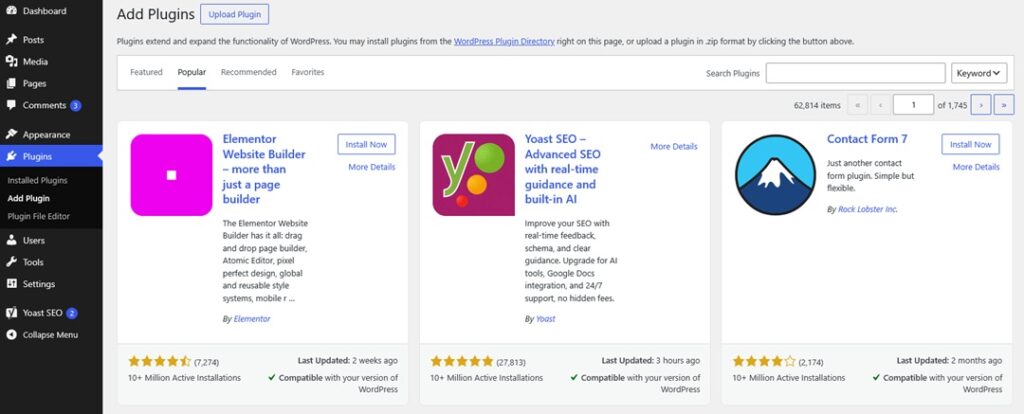
For instance, you can add a contact form, improve your SEO, speed up your site, or open an online store.
There is a plugin for almost everything. At the moment, the official plugin directory has more than 59,000 free plugins. On top of that, there are thousands of premium plugins with even more features.
Below are some of the most popular plugins that the websites use:
- Yoast SEO : Helps optimizing your content for search engines
- WPForms : Let you add contact forms to any page of your choice
- WooCommerce : Turn your website into a full-fledged online store
- Jetpack : Overall site management
- WP Rocket : Speed up website loading time
What Do You Need to Start a Website?
The good news is that you only need three things to start :
- A domain name – This is your website address, like yoursite.com. (What is Domain Name ?)
- Web hosting – This is where your website lives on the internet.
- WordPress – Open Source software
Most hosting companies offer a one-click installation option, so you don’t need to download WordPress separately.
Once your hosting is ready, you can install WordPress, pick a theme, and start adding your content. Then, your website goes live for the whole world to see.
Next, we will see how to start a WordPress site.
How to Get Started with WordPress
To create a website or blog using WordPress, we primarily need three things, a domain name, a hosting server, and the WordPress software. Setting up and launching a WordPress site takes less than an hour.
Here is how to do it.
Register a domain name
You can register it through your hosting provider or separately via a domain registrar like Namecheap or Godaddy. How to Register domain name on GoDaddy
Choose a hosting provider
You need web hosting to store your website’s files. For beginners, Bluehost, SiteGround, and Hostinger are best choices.
Connect your domain to Hosting
Now that you have your hosting and domain ready, it is time to connect them.
Install WordPress
Log in to your hosting dashboard and run the one-click installer, this takes about 60 seconds. Your hosting provider creates the database and automatically installs WordPress.
Log in to your dashboard
Once it is installed, you can log in. Go to yoursite.com/wp-admin, enter username and password, and you will be logged in. Now, you will then see the dashboard for the first time.
Choose and install a theme
Go to Appearance → Themes → Add New, search for a theme you like, and click Install, then Activate. Your site instantly updates with the new design.
Add your first post
Go to Posts → Add New Posts → Add New. The block editor (known as Gutenberg) allows you to add text, images, buttons, and columns by inserting blocks and for that no coding is required.
From here, you need to simply repeat the process. Keep adding useful content, and your website will grow step by step.
WordPress is free, flexible, and easy to learn. It powers millions of websites for a good reason.
Whether you want to start a simple blog or a full online store, it gives you everything you need. The best thing is that you have complete control over your website.
We hope this article helped you understand what WordPress is and how it works. If you found this guide helpful, please share it with your friends who want to build their first website.
Next, you may want to learn how to choose the best web hosting.
Additional Resources
