

Hello WP Holders, Do you want to do some search and replace on your WordPress website? We can understand that it is not easy to bring about drastic changes to something.
You can change the link or text in WordPress If you have limited posts, but if you have a lot of posts in your WordPress, it is not easy to edit all those posts and change the text, URL or any code.
Today in this article we will talk about search and replace. We will do it in two ways: one with a plugin and the other without a plugin.

How to Search and Replace in WordPress with Plugin ?
if you are beginner Search and replace is very easy and safe through the plugin, you don’t need to know any coding for this.
It is highly recommended that take ‘backup’ of your WordPress database before you begin Because this will be a direct change in the database
So let’s get started. First of all, you will have to install a plugin for this. To install the plugin, go to Plugins » Add New Plugin now search here ‘Better Search and Replace’ Install and activate the plugin.
After Installing Plugin Go to Tools » Better Search and Replace, you will see a screen like the image below.
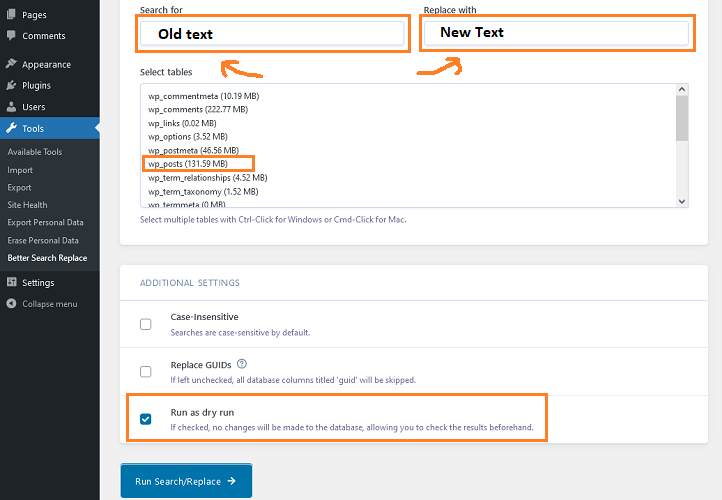
Type the text you want to Change in the ‘Search For’ field. Then you need to type the text you want to replace in the ‘Replace With’ field.
You can now select the table you want to change. You can also select more than one table. for select multiple table press ‘Ctrl and click’ from mouse.
Running as a dry run is like a preview, no changes will be made unless you uncheck. To know how many changes to be made, keep Run as dry selected and click the Run Search/Replace button.
Now Simply Uncheck the button next to Run as dry run then click on Run search/replace button. changes have been made successfully.
Getting error? No need to worry, just go to Better Search Replace plugin settings as you can see in the image below.
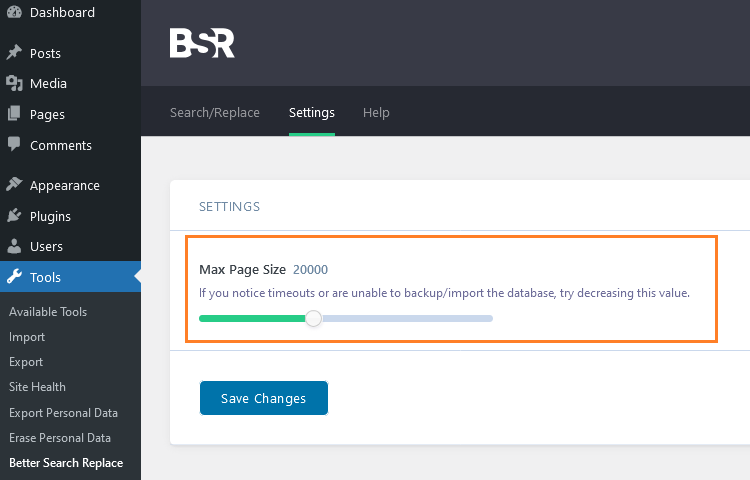
If you see timeout then try decreasing the value, if the issue still persists, then try increasing the value once.
Search and Replace in WordPress Manually
To do manually search and replace, you need to have some technical knowledge if you don’t have technical knowledge then you can do search and replace through plugin.
Here for search and replace we need to run a SQL query in database, you can access your WordPress database by phpMyAdmin so let’s do it
To Access database go to hosting dashboard » database » phpMyAdmin click on your database name
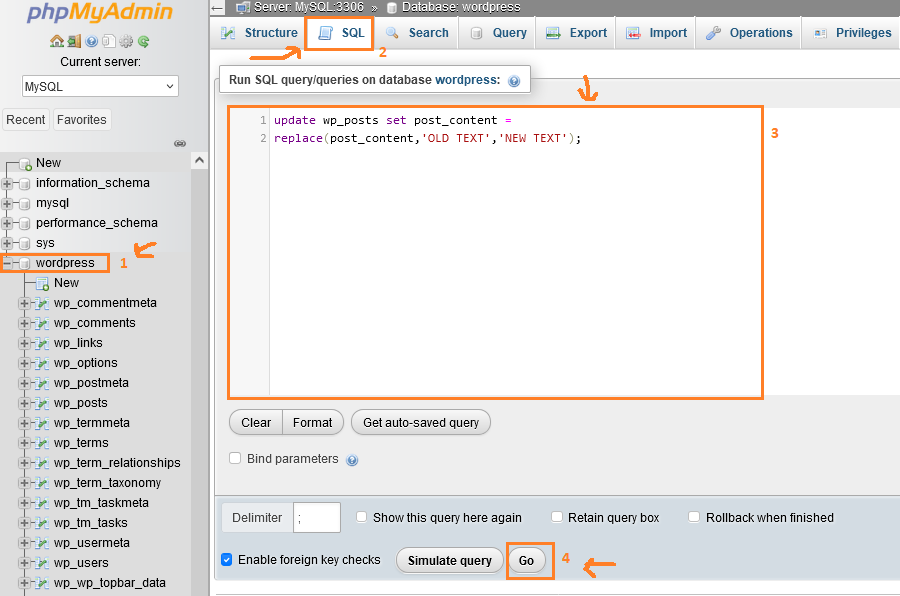
My database name is WordPress. Firstly click on your ‘database name‘ whatever name you have given. then click on ‘SQL‘ And paste below given ‘SQL Code’ in box.
update wp_posts set post_content =
replace(post_content,'OLD TEXT','NEW TEXT');
Remember, type the text you want to change in place of ‘OLD TEXT’. Then you have to type the text you want to replace in place of ‘NEW TEXT’ and click on Go Button.
Thats it,
Understand this SQL Query
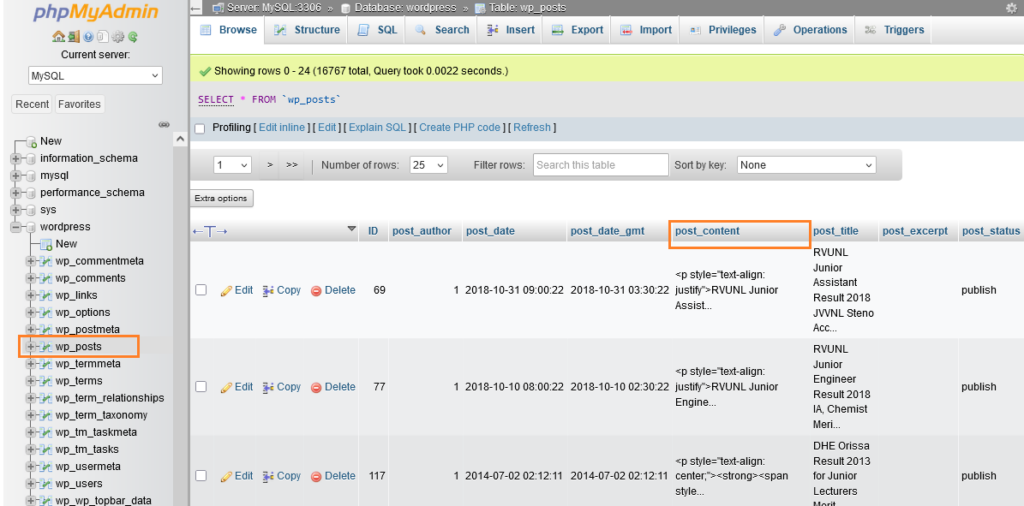
Here we have selected the wp_posts table and the post_content column. This means that changes will be made inside post_content.
Suppose you want to change any other column then write the name of the column in place of post column. If I want to change something in the post_title column then the code will be like this
update wp_posts set post_title =
replace(post_title,'OLD TEXT','NEW TEXT');
Now suppose you want to change something in wp_comments table and comment_content column then the code will be like this
update wp_comments set comment_content =
replace(comment_content,'OLD TEXT','NEW TEXT');
Similarly you can Search and Replace according to your need and make changes in code. I hope you liked this article. If you face any problem then please ask in the comment.
