
Do you want to find WordPress Username and Password? Most hosting service providers offer the option to log in to WordPress directly from their control panel. This process takes time and can be confusing, especially for beginners.
But there’s a much easier way.
You don’t need to go to the hosting panel every time. WordPress has its own direct login page. This direct method is faster, easier, and hassle-free. With a simple click, you can access your WordPress dashboard in just a few seconds.
To do this, you will first need your WordPress login username and password. Start by accessing WordPress through your hosting panel.
You can login directly to your WordPress dashboard, and this makes things easier. You don’t need to open Bluehost again and again. Just go straight to WordPress and log in.
In this step-by-step guide, we’ll show you the fastest and easiest way to find WordPress username and password.
How to Find WordPress Username and Password ?
While there are several ways to find WordPress username and password, the two methods described below will show you how to do that.
let’s get started!
Find WordPress Username and Password from Dashboard
For now, you will need to access the WordPress panel again through your hosting panel.
Since we are using Bluehost, we will first log in to Bluehost and then go to our dashboard and click on the ‘WordPress Admin’ button.
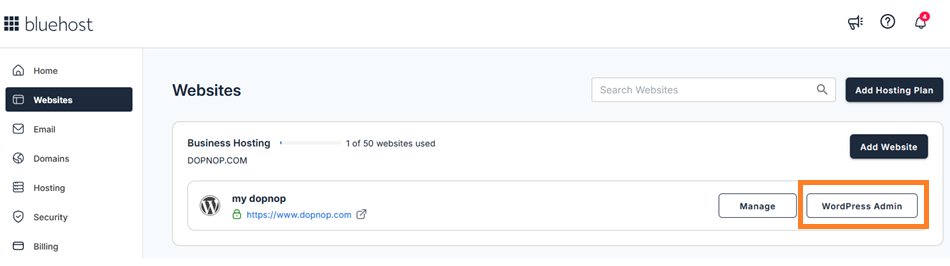
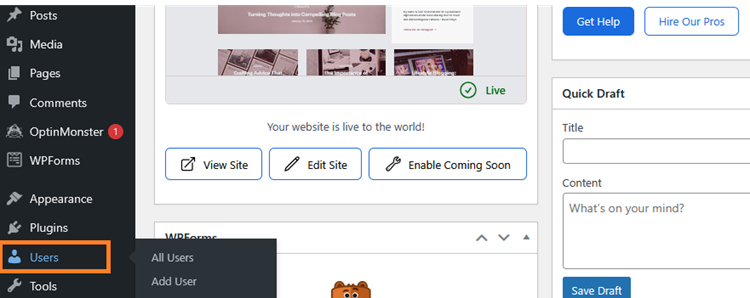
I assume you have already logged into your WordPress dashboard. Here, we will first look for the username and then the password.
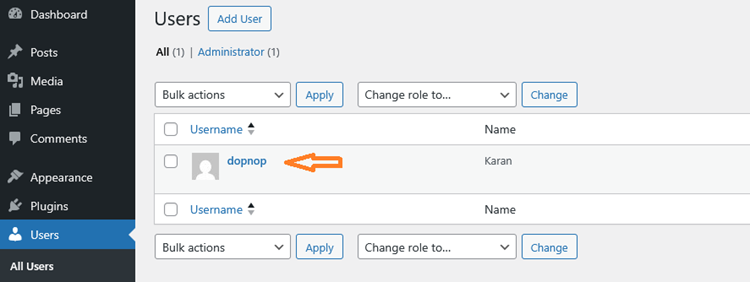
To find a username, you simply need to click on ‘Users’.
On the All Users page, you will see a table containing usernames, names, email addresses, roles, and posts.
Your username will be the first item listed in the table, which is usually your email address, name, or something created by the hosting service.
As shown in the screenshot below, ‘dopnop’ will be my username.
Hopefully, you have found your username. Before leaving this page, please make a note of this username. Write it down on a piece of paper or copy it into a text editor like Notepad on your computer.
Next, To get your WordPress password, simply hover your mouse over the username; you will then see a menu with options to edit and view.
Then, click on the ‘Edit’ button.
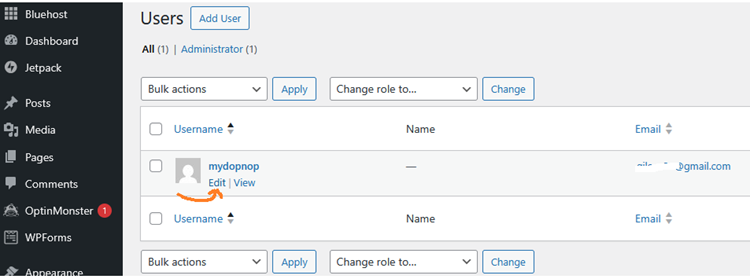
Clicking the Edit button will take you to the user profile page. Now, scroll down until you see the Account Management section.
Let’s click on the ‘Set New Password’ button.
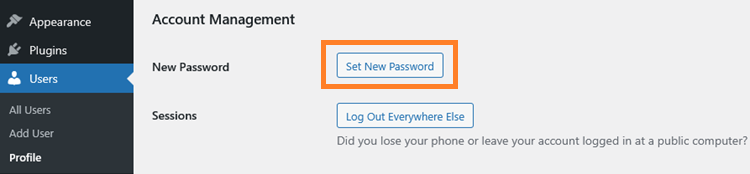
Although WordPress will automatically generate a strong password for you, you can replace it with your own strong password if you wish.
We strongly recommend you to use a strong password and remember it.
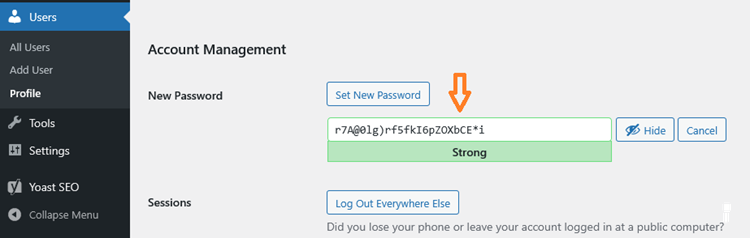
If you enter a weak password, WordPress will ask you to check a box to confirm that you want to use a weak password.
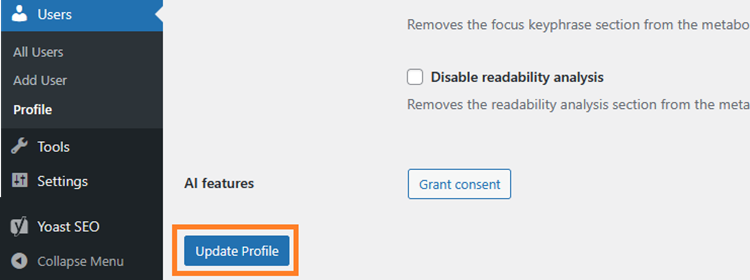
After entering the password, scroll down and finally click on the ‘Update Profile’ button to apply the changes.
Now you have both username and password. Save them somewhere or remember them.
Let’s try logging in to WordPress Dashboard directly.
First, you need to go to your WordPress site’s login page. By default, you can access the WordPress login page at this address:
https://www.mydomain.com/wp-login.php
Remember to replace www.mydomain.com with your website’s address.
For example, if my website URL is www.dopnop.com, then its WordPress login URL would be https://www.dopnop.com/login.php.
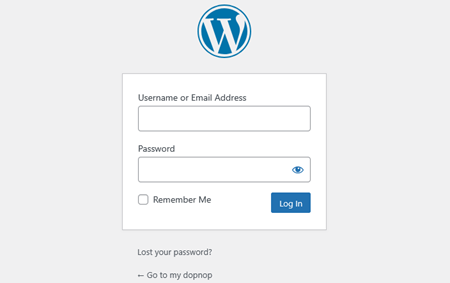
Your browser will load the WordPress login page. Simply enter your username and password and then click the ‘Log In’ button.
It’s done. That’s all.
Let’s do it a different way.
Get it through phpMyAdmin
The most common reason for accessing WordPress data via phpMyAdmin is emergency access situations. For example, you might suddenly be unable to log in to your WordPress admin area, or you may have forgotten or lost your username and password.
We will provide you with step-by-step instructions on how to find your WordPress username and password using phpMyAdmin.
Follow the steps provided, and you will be able to retrieve your username and password.
phpMyAdmin is a web-based database management tool that is available in most hosting dashboards. It allows you to read and edit the data stored in your WordPress database, including your administrator login information.
Most web hosting providers give you a utility or interface to view your MySQL database, and the most common one is phpMyAdmin. If you’re unsure how to access your database on your hosting account, contact your hosting provider to find out.
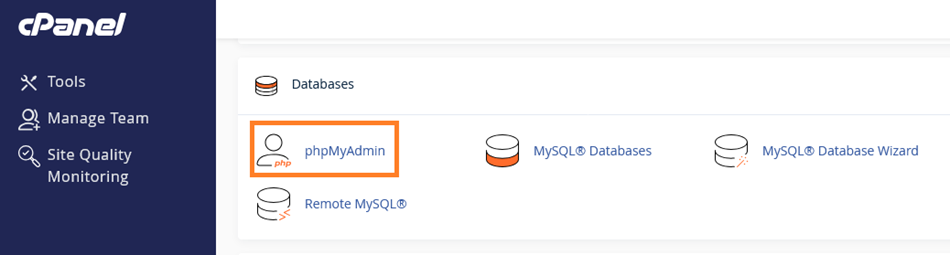
Log in to your hosting account, then find ‘phpMyAdmin’; you’ll usually find it in cPanel.
Now, click on the phpMyAdmin. The phpMyAdmin interface will open and display all your databases.
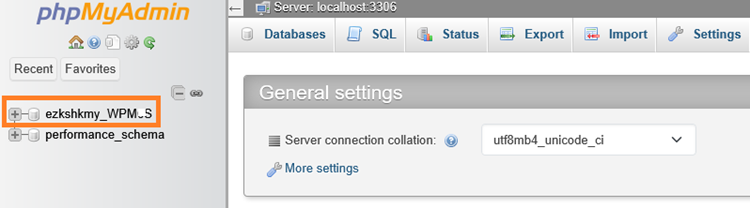
The menu on the left will show a list of the databases associated with your hosting account. If you have multiple websites, you might see multiple databases listed here.
Now, simply click on the database name.
You will see a list of all the database tables, containing everything from posts and pages to user accounts and settings.
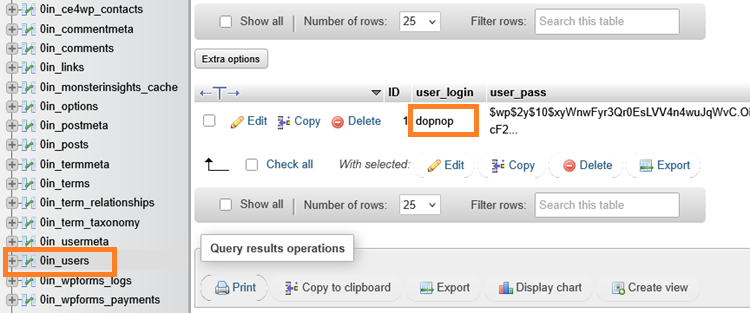
Most WordPress tables start with “wp_”, but some may have a different prefix. The next step is to locate the ‘wp_users’ table and click on it .
The “user_login” column shows the correct username you need to use to log in to WordPress. Write it down somewhere.
Now, Proceed to get your WordPress password.
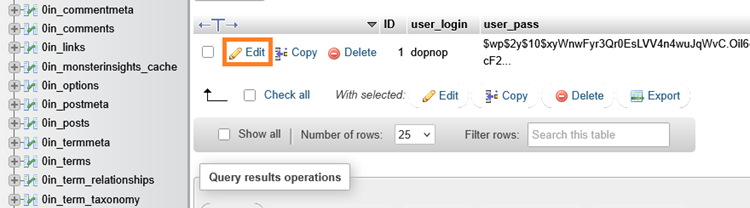
Click the ‘Edit’ button next to the username whose password you want to get.
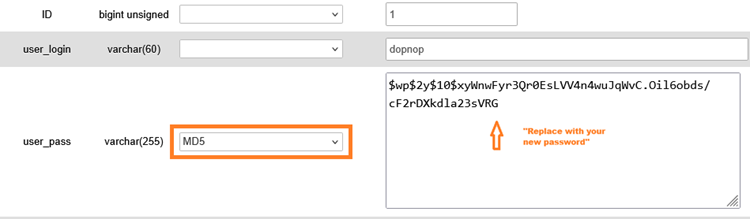
This is your WordPress username next to the user_login column. Under user_pass, select MD5 from the drop-down menu, and finally, delete the auto-generated password and enter your new password.
Under the Function column, select MD5 from the drop-down menu, and then delete the auto-generated value in the user_pass field and enter your new password.
Now, Scroll down and click on ‘Go’ button.

I hope you followed the steps carefully and successfully obtained your username and password. Now try logging into the WordPress dashboard. You can access the WordPress login page at this address:
https://www.mydomain.com/wp-login.php
Remember to replace www.mydomain.com with your website’s address
Thank you!
Also Read: How to Easily Change WordPress Username (With Steps)
