

If you are going to start a blog or a website or you have just started one. Creating a page is one of the first and foremost skill you should learn.
Pages are an important feature in WordPress that people and businesses use to create pages such as About us, Contact us, Privacy policy, Terms and Conditions, Author Page and many more on their blogs and websites.
In this article, we will talk about how to create a page and how to edit a page using all the features the WordPress has to offer. So, let’s start together.

Creating a Page in WordPress
To start, go to your admin dashboard and click or hover over the ‘Pages’ menu.
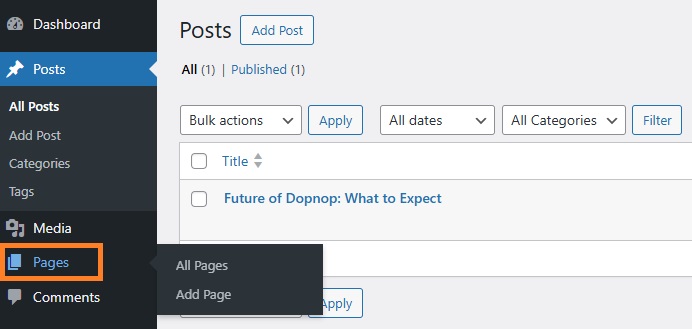
Doing that, a submenu will appear with two links, ‘All Pages’ and ‘Add Page’ on the screen.
If you want to create a New Page, you have to click on ‘Add Page’.
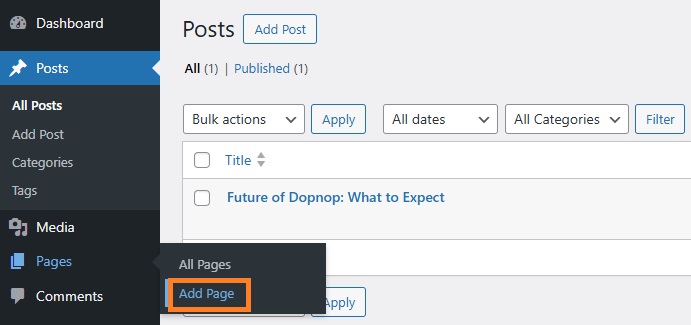
On the Page edit screen, first of all, type a title in the ‘Add Title’ field on the left. I have given My First Page as a title for reference.

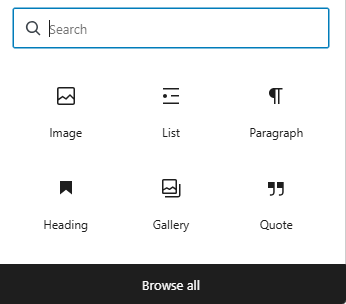
Next you can start writing your content, Just click on the ‘+’ icon or Type / to search and choose a block.

You can use a paragraph, table, image, list or any content item block you like.
You will find creating a post and page is almost similar but different when you display and use it on your blog or website.
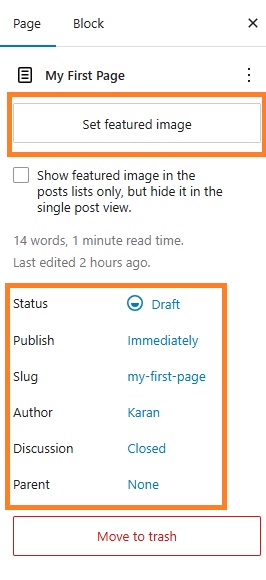
Next, You may assign a parent page, change or edit your slug, set a featured image or make any other changes you want under Page Settings on the right side.
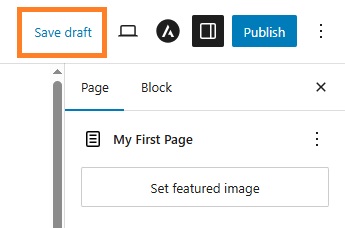
After you make changes, Don’t forget to click on ‘Save draft’ button on the Top right to save all changes.
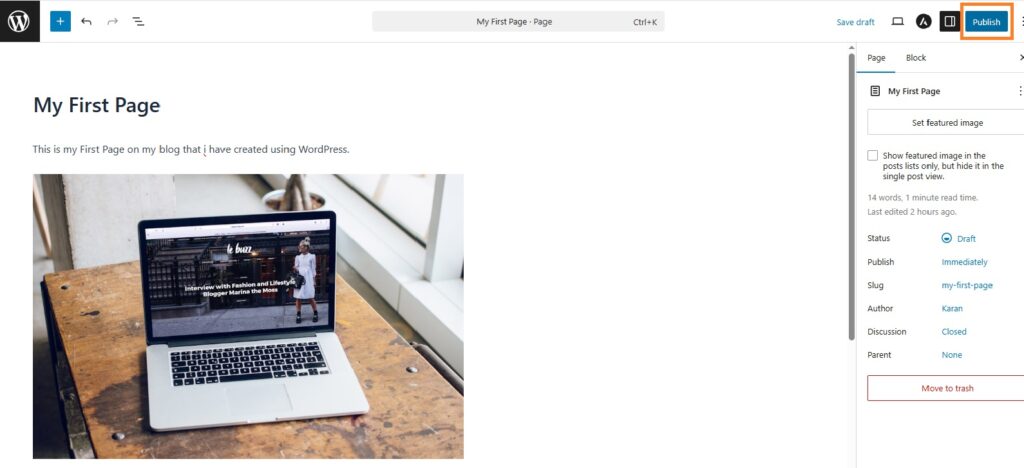
Finally, when you are done writing the page you’ve created, double check all the settings once and click on the ‘Publish’ button located on the right to publish the page.
You can also add the pages to navigation menu in WordPress. Please check out our detailed guide on How to Add a Navigation Menu to help you learn setup menus and assigning pages, posts, categories and custom links to your WordPress menu.
I Hope you have learnt how you create a sample page on WordPress for your site. if you have any questions, feel free to ask in the comments below. We will be happy to help.
