
Do you Like your WordPress username? If Not! you may want to change it. Or, Is there some other reason you wish to change your WordPress username?
When you buy a new managed hosting, WordPress is already installed. Usually, the default username you get is ‘admin’. The ‘Admin’ username can be a target of brute-force hacking attacks as it is predictable and easy to guess.
In this Article, We will discuss how to change WordPress username step by step guide without plugin or with plugin
Ways to Change Your WordPress Username
In WordPress, You can change your full name or password easily from your user profile. But, it is written in the username field that we cannot change usernames.
You need not worry, As there are several ways to change the username. In this article, we will explain the quickest and easiest methods to change your WordPress Username.
- Change Username by Using Plugin
- Create New User and Delete old user name
- Change User Name Using Database (phpMyAdmin)
Change WordPress Username by Using Plugin
The safest and easiest way to change the WordPress username is to change it through a plugin and the best part is that after changing the username, you do not need to keep the plugin, you can remove the plugin permanently.
There are many Plugins available but here we are installing ‘Easy Username Updater‘ plugin to change username.
Before installing any plugin, it is better to take a backup of your WordPress database.
Let’s Install WordPress Plugin the ‘Easy Username Updater’, Go to Plugins » Add New Plugin now search Easy Username Updater and install it.
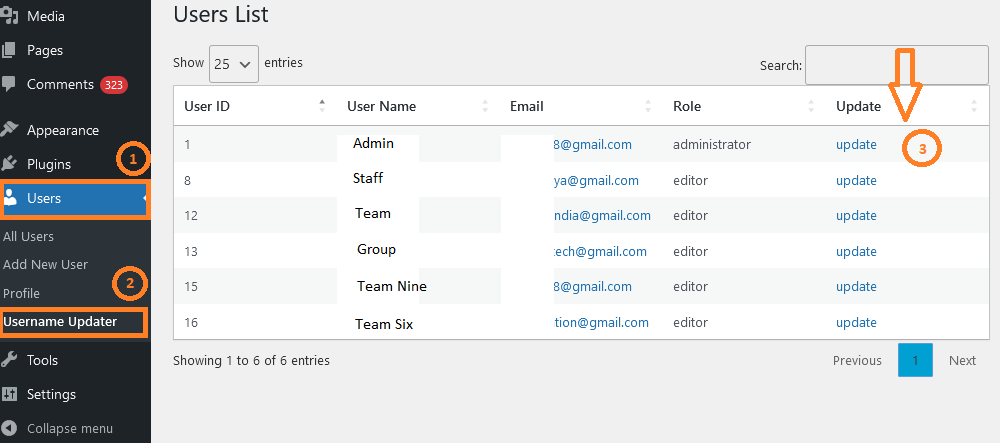
After installing the Username Updater plugin, go to Users » Username Updater. Now you can see the user list on the screen, click on the update link next to the username you want to change.
After Clicking on Update you will get new screen to change old username to new username, simply enter ”New Username” you desire and click on update username.
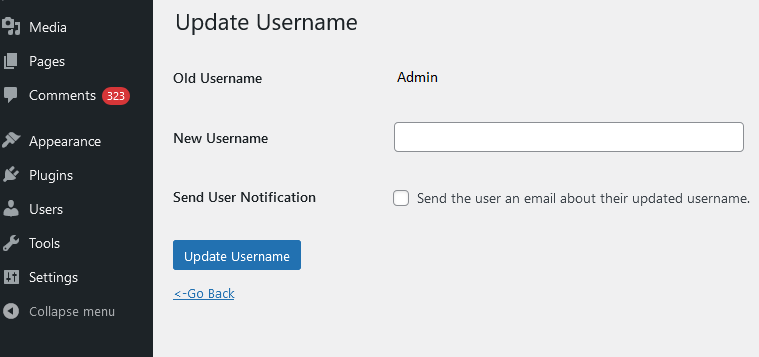
You can also check Notify Box ”Send User Notification” if you want to send the user an email about their updated username.
Username has been updated Successfully Now you can easily uninstall Easy Username Updater plugin.
Create New User and Delete old user name
This is also a good way to change WordPress username. For this, first you have to create a new username of your choice, Keep user role as Administrator.
When creating a new WordPress username, you will need a different email address that you have not used before in any user profile.
To create a new username in WordPress, go to Users » Add New User from your WordPress dashboard.
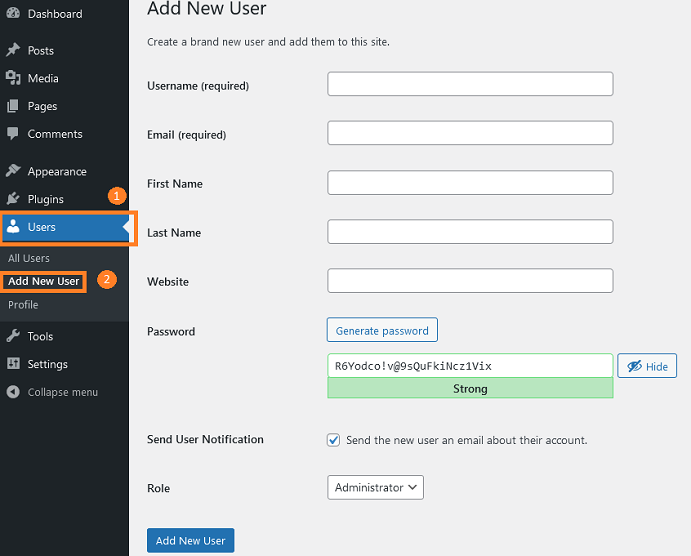
Fill in all the required details and set the role as Administrator, don’t forget to note down the password. After filling in all the details just click on Add New User.
The new user account has been created. You can now log out of WordPress and then login again with the user ID and password you just created.
To delete old username simply go to Users » All Users from your WordPress dashboard, here you will find list of all users.
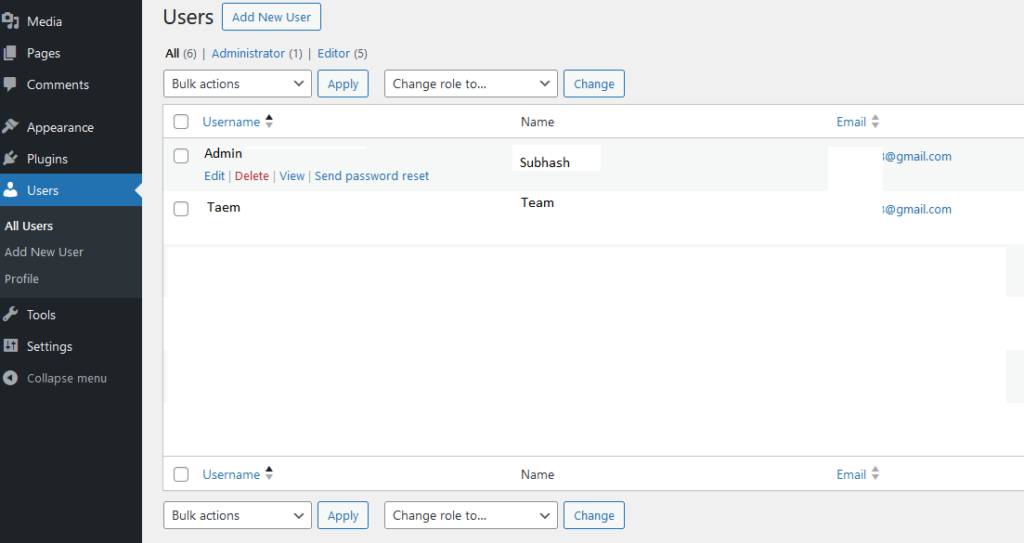
When you delete the old username, WordPress asks you whether you want to Delete all content under it or attribute it to another user, then choose ”Attribute all content” to: New User you created.
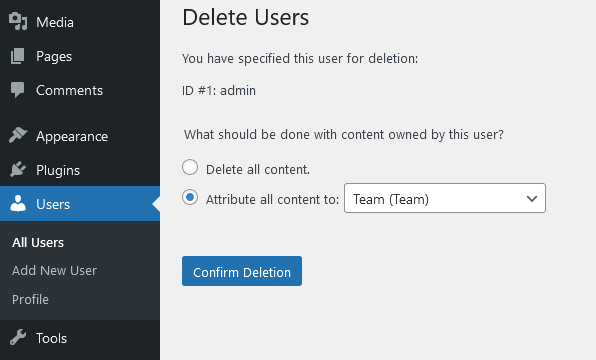
That’s it, just click on the ‘Confirm deletion’ button to delete the old user account.
Your old username has been deleted and your new username has been created successfully. Whatever content was there has been transferred to the new username, you can check it.
Change User Name Using Database (phpMyAdmin)
WordPress Username can be changed through phpMyAdmin but This is a bit challenging for beginners, so I would not recommend.
But sometimes it happens that we are unable to access WordPress dashboard or any other issue occurs, then we can change username directly through phpMyAdmin.
You can access phpMyadmin under database section from your web hosting dashboard, after login to phpMyAdmin you will get you WordPress database.
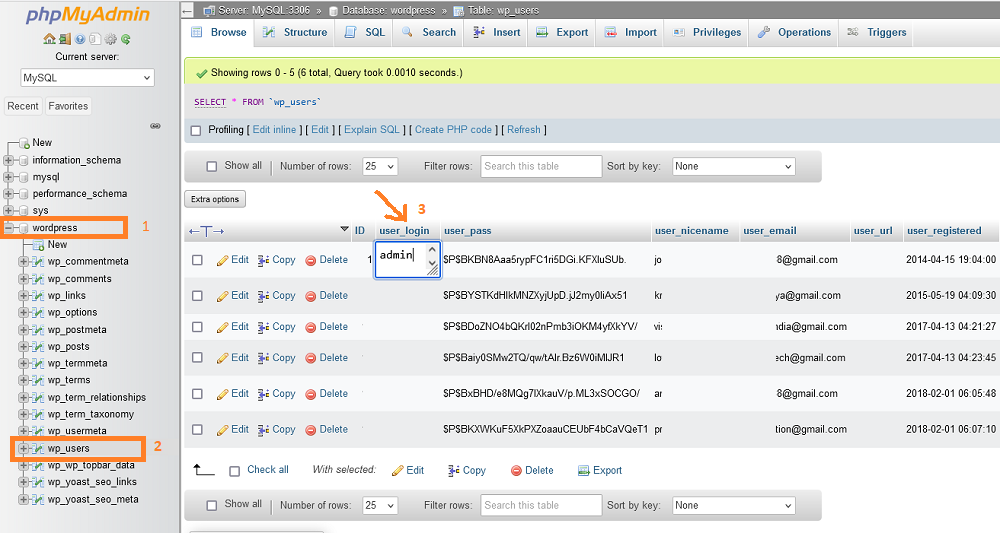
To Change Username just double click on username and enter your desired name in the field and click enter or you can click on ‘Edit’ link next to the username that you wish to change simply type the new username you wish to use in the user_login field.
Also Read: How to Search and Replace in WordPress
Now you can try logging in with the new WordPress Username, I hope you will be able to login successfully.
We hope that you have learned how to change WordPress username easily, still if you have any query then ask us in the comment box below.
