

Do you want to know how to change your WordPress theme? Perhaps you’re not happy with your current theme? However, there’s a good chance you simply want to give your website a fresh look and add some new features.
However, it is crucial to carry out this process systematically to avoid potential problems such as broken layouts or lost content. my suggestion only use popular themes
When I started my new website, I was confused how to change theme and which theme to use. After a lot of research, GeneratePress and Astra became my top choices. If you’re undecided about which one to choose, these could be excellent options for you.
In this guide, I will walk you through the entire process how to change your WordPress theme. I will also provide a step-by-step checklist to help you easily switch themes.

What you need before you start ?
We recommend that you always back up your site before making any changes to WordPress. If something goes wrong, you’ll have the option to revert to a previous version.
Also, make sure you have admin access to your WordPress dashboard.
let’s get started,
How to change your WordPress theme ?
There are several options available for installing a new theme on your WordPress website. You can use any of the following methods to install a WordPress theme:
Method 1: Installing Themes from the Dashboard
WordPress provides a very easy way to browse the theme directory, allowing you to find, preview, and install themes on your site without leaving the WordPress dashboard.
In other words, you can change your WordPress theme directly from the WordPress dashboard.
The steps below show you how to do this:
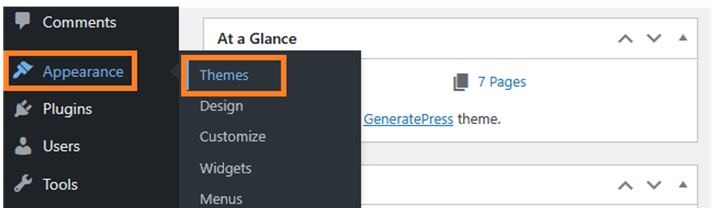
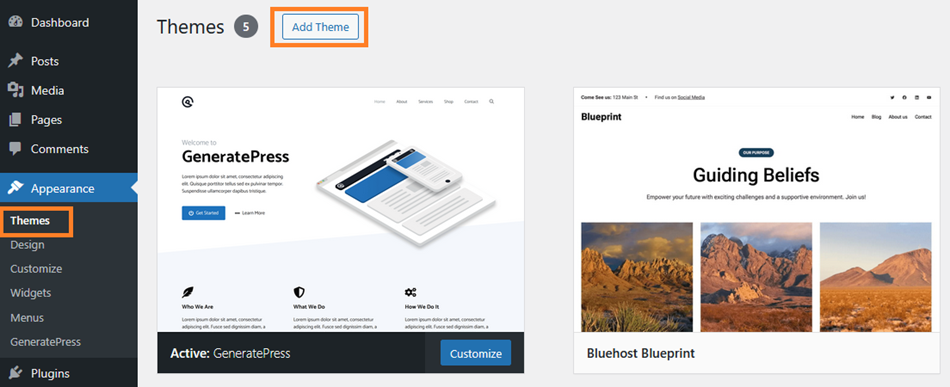
Go to Appearance » Themes in your WordPress dashboard.
On this page, you will see all the themes installed on your site, such as some of WordPress’s default themes like Twenty Twenty-Five.
Now click on the ‘Add Theme’ button at the top of the page.
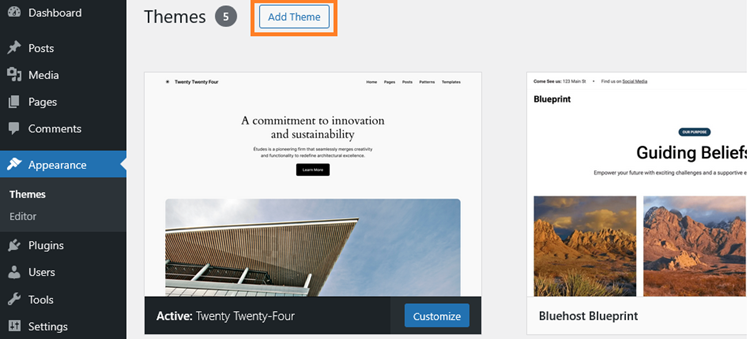
You might not see the “Add Theme” button, Go ahead and hover your mouse over the + icon on blank theme at last of installed theme.
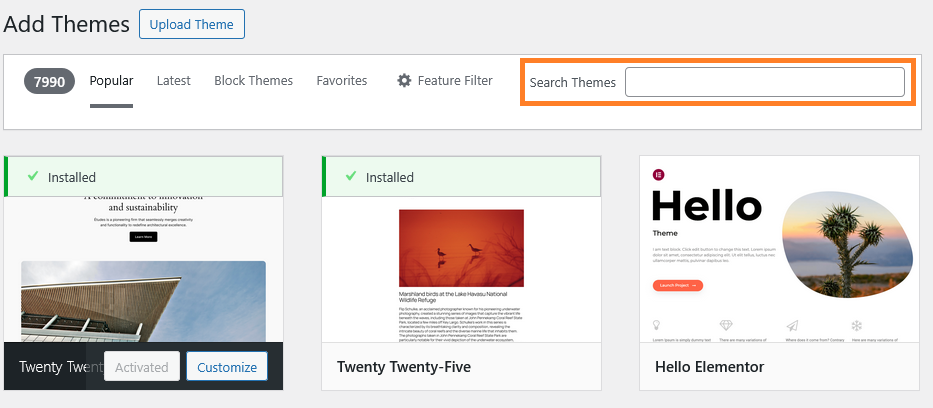
On the Add Themes page, you’ll find a collection of popular themes and a search box to search by keywords, author, or tags. A featured filter is also available with a gear icon, allowing you to select your preferences.
Now, search for themes by entering the theme name in the search box next to “Search Themes.” Or you can choose from the popular theme collections.
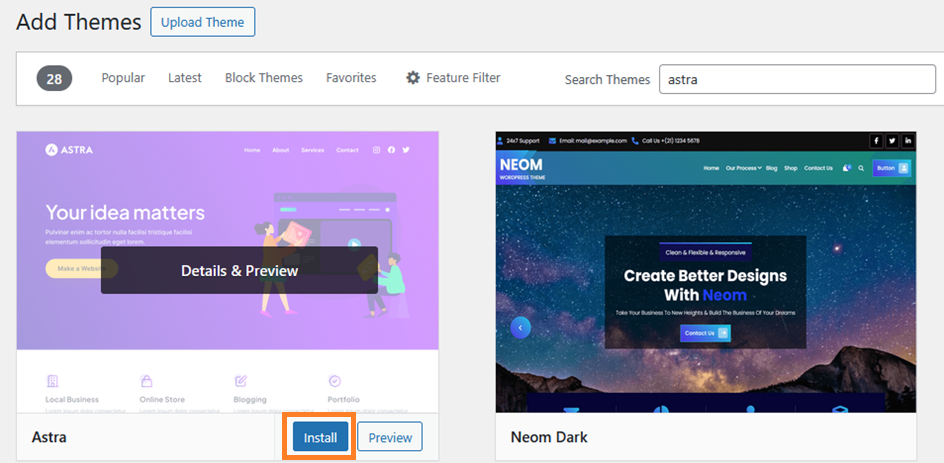
For example, to install the Astra theme, I would search for “Astra” in the search box.
When you search for a new theme, the search results page displays a list of themes for you to choose from. Click the preview link below your preferred theme to see what it looks like.
Once you find a theme you like, hover over the themeʼs thumbnail image and click the ‘Install’ button in the bottom left corner, and it will be added to your installed themes.
Once installed, you will see an Activate button instead of Install. All you need to do is click on the ‘Activate‘ link to start using the new theme on your site.
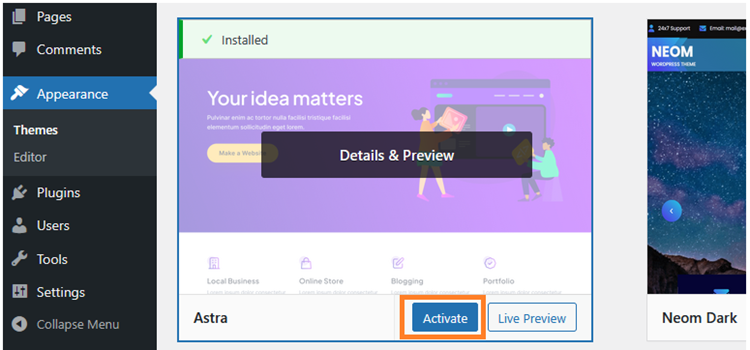
Congratulations!
Your new theme is now active. After activation, please visit your website to make sure everything looks and works correctly.
Method 2: Change your WordPress Themes using theme directory
The WordPress.org themes directory is considered a safe place to download free themes. Developers upload their themes to the directory, and the team behind the WordPress platform reviews each theme.
Currently, there are over 14,000 themes available for download in the WordPress.org themes directory to customize your WordPress site.
Let’s see how to add a theme to WordPress using the themes directory.
First, you must visit WordPress themes directory.
To find a theme, simply enter the theme name in the search box and then click the search icon. For example, if I’m looking for Astra, I would search for “Astra” in the search box.
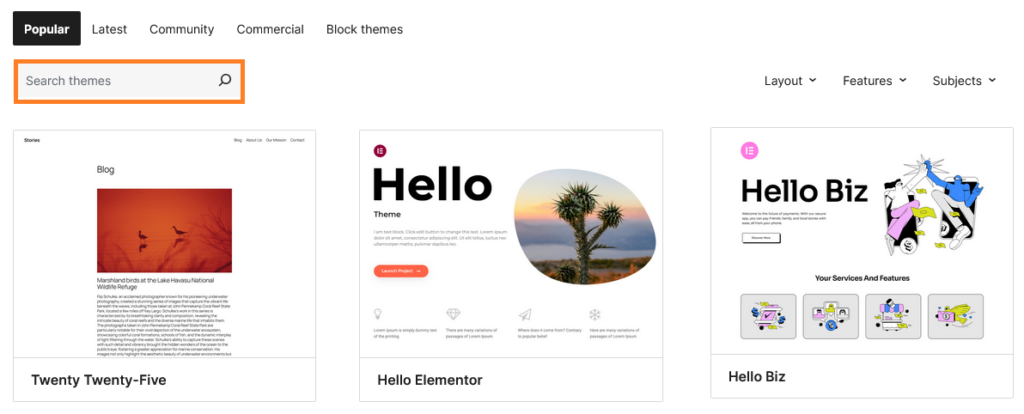
You will get the WordPress theme you searched for; now move your mouse over the theme thumbnail and click on it.

Before adding it to your theme collection, take a look at it; simply preview what the theme looks like and whether it meets your expectations.
Next, click the ‘Download’ button.
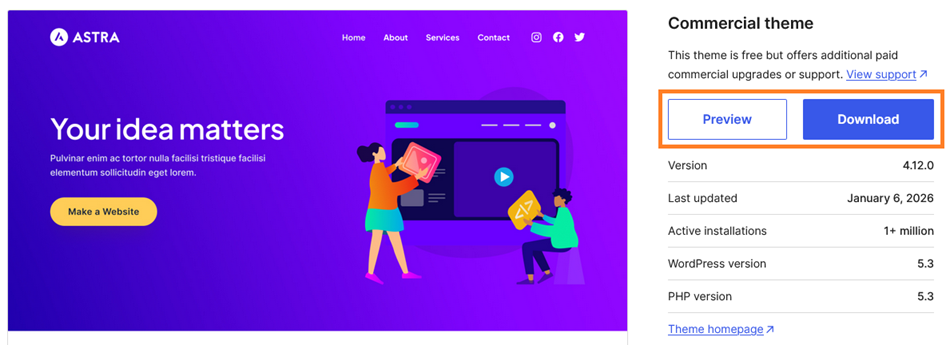
Then, the theme file will be saved to your computer in ZIP format within a few moments, usually with the theme name written on it, such as (astra.4.12.0).
Next, Log in to your WordPress Dashboard and go to Appearance » Themes.
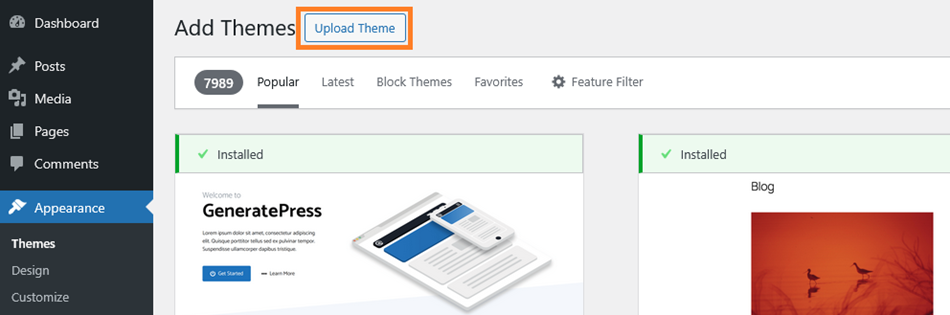
Then, Click on ‘Add Theme‘.
The Install Themes panel appear, Simply click on the ‘Upload theme’ option.
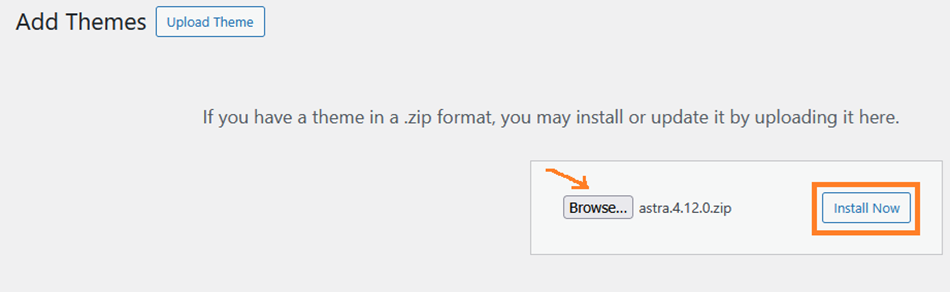
Now, click the ‘Browse’ button and then select the theme’s zip file from your local computer that you downloaded from the WordPress theme directory.
Then, click on the ‘Install Now’ button.
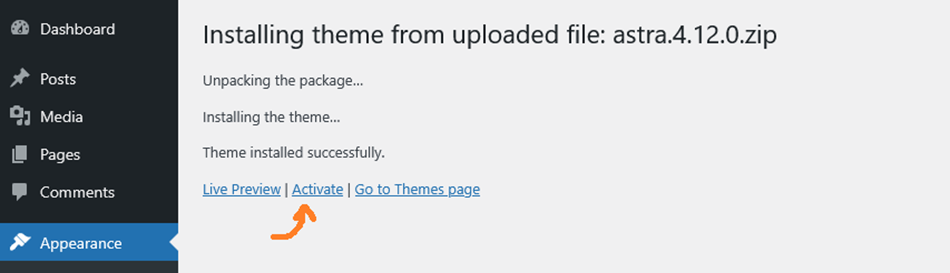
WordPress will automatically extract your theme and install it in the correct directory; you will see a message confirming that the theme has been successfully installed.
Now, click ‘Activate‘ to apply the theme to your website.
Once activated, the theme will immediately go live on your site. You can visit your homepage to see its new look.
Each theme has settings that you can modify to suit your style. To open the customization area, go to Appearance » Customize.
The easiest way to personalize a theme is with a graphical header that includes your logo and matching background graphics. You can customize all of this to your liking.
If you have WordPress installed on your computer on localhost, you can also try installing the theme there first.
Here is guide, How to install WordPress on localhost
Thank you for reading.
