
Hello WP holders, are you looking for a way to reset the WordPress password in your database using phpMyAdmin?
It is often seen that WordPress holders are unable to reset their password directly from the WordPress login page. The reason for this can be anything, either facing a issue or sometimes not receiving the reset email.
In this article, we will discuss how to reset WordPress password from phpMyAdmin. We will explain step by step.
Reasons to Use phpMyAdmin to Reset WordPress Password?
Well, changing the WordPress password is very easy. Just go to the WordPress login page and click on Lost Password.
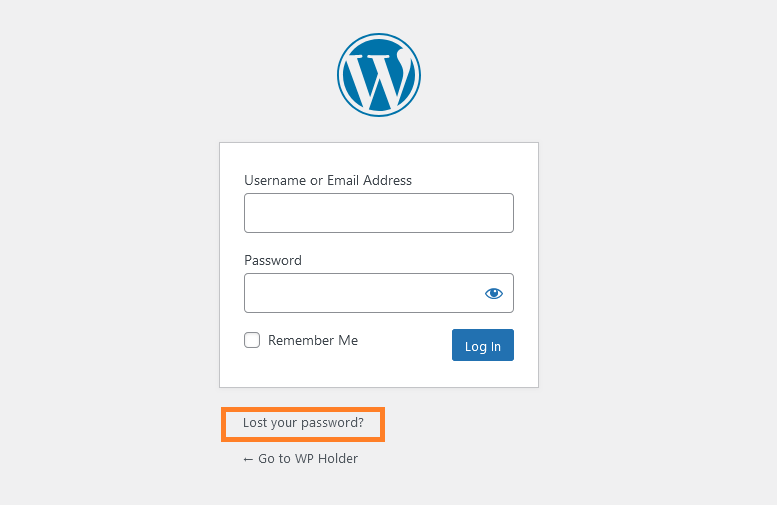
After entering the registered email or username, click on the Get New Password button and you will get an email to reset the password. You can easily reset the password by clicking on it.
Although, if you don’t have access to the associated email address for some reason, or you can’t get the password reset email, you will not be able to reset your password.
In such a case, you will need to reset your WordPress password directly in the database. The easiest way you have to reset WordPress password is through phpMyAdmin.
So let’s see further how WordPress password can be reset through phpMyAdmin
How to Reset WordPress Password From phpMyAdmin ?
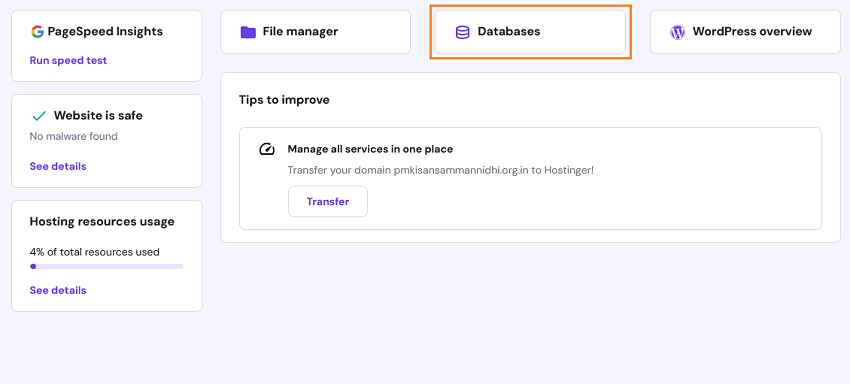
First login to hosting panel and go to database section and click on phpMyAdmin to launch the database
Remember, your hosting provider’s interface may be different
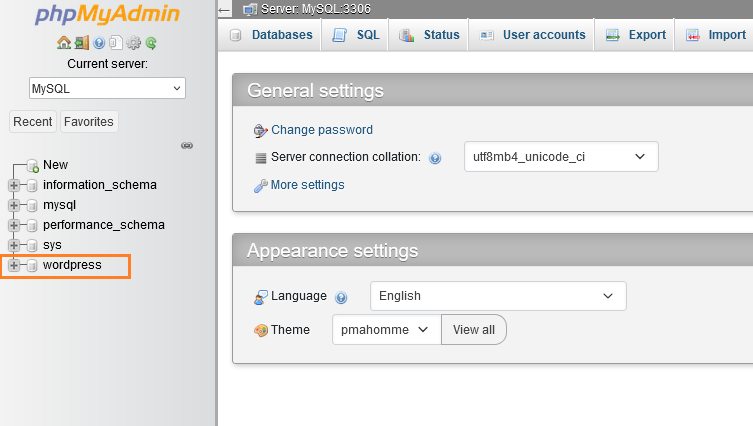
After successfully login to phpMyAdmin simply click on your database name. Please keep in mind that your database name may be different.
here my database name is WordPress.
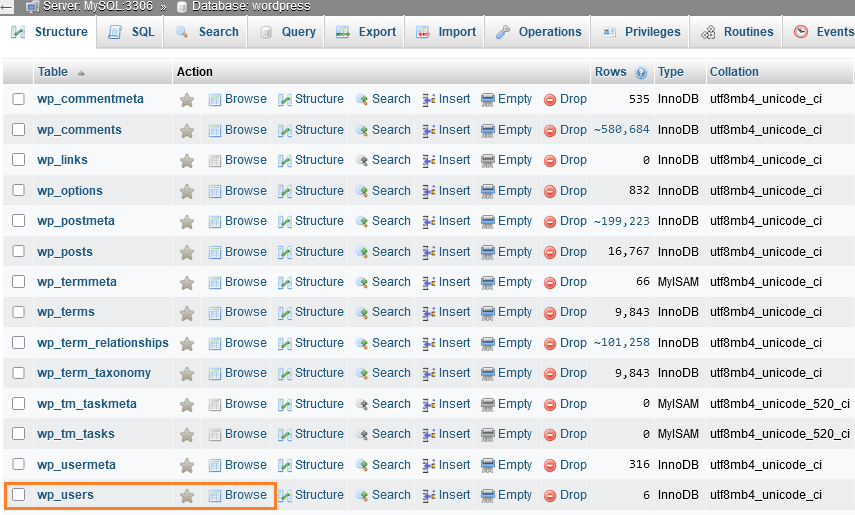
After clicking on the database name you will see the list of tables of WordPress database, here you need to find the “wp_users” table in this list and click on ‘Browse’
you can also click on ‘wp_users’.
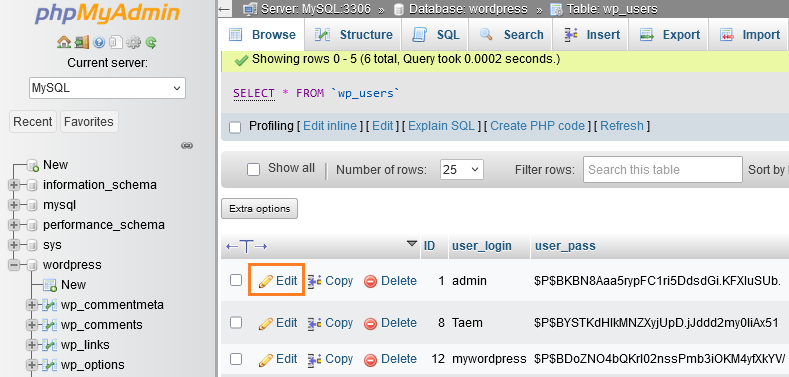
You now have a list of all WordPress users. Click the ‘Edit’ link next to the user whose password you want to change
Here I am changing the admin password in this tutorial so I am clicking on the edit link given next to admin.
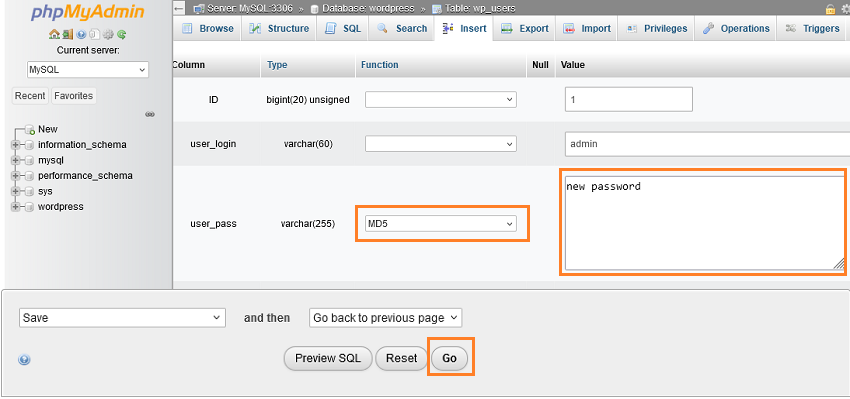
This is the last step, do it carefully First delete the value written in ‘user_pass’ and type your new password in this field.
Under function column please select ‘MD5’ from drop-down menu next to the password you entered and click on ‘Go’ button.
Congratulations, your password has been changed successfully if you have not made any mistakes. Thank you very much for reading this article. I hope I was able to help you.
If you have any question related to this article then definitely ask me in the comment box, I will be very happy to answer you.
